
Creating Exports
Overview
You can download preconfigured exports or create exports to extract data from CSU Transfer Planner and share them with other users or import them into your CRM or Student Information System (SIS).
The Community College Standard CSV Export - TSP
Every Monday, the preconfigured Community College Standard CSV Export - TSP is updated with the latest information. The file only contains students who have listed your community college as their primary college in the CSU Transfer Planner Student Portal, with the following data points:
- First Name
- Last Name
- Email Address
- Date of Birth
- CCID
- Expected Transfer Date
- CSU University
- TSP Program
- TSP Enrollment Date
- Current TSP Status
- Primary Community College
- Expected CC Start
Downloading via Email
Every Monday, you'll receive an email with a link to the preconfigured Community College Standard CSV Export - TSP. To download this report via email:
- In your weekly email, click Open Export Log / File Download.
- You'll automatically be sent to CSU Transfer Planner to log in.
- Click the file name to download it. Be sure that your browser's pop-up blocker is disabled.
Downloading via CSU Transfer Planner Community College Portal
You can also download this file through CSU Transfer Planner Community College Portal. To do so:
- Using the Navigation Menu, click Contacts.
- Use the checkboxes to select the students you want to export.
- Click Export at the bottom.
- Select Community College Standard CSV Export - TSP.
- Click Download.
Creating a New Export
Note that the instructions below may reference more advanced feature setups and include links to the Liaison Outcomes Help Center (which CSU Transfer Planner is built on).
To generate customized export files, you’ll first need to configure export templates. To create an export template:
- Go to the Import/Export section of the Settings menu and click Contact Exports.
- Review the existing exports, or click the plus sign to begin creating a new export file.
- Choose your Contact Type from the drop-down, then choose an export type. Available export types are:
- JSON: short for JavaScript Object Notation, this is a lightweight, data-interchange format using human-readable text. It is commonly used for transmitting data in web-applications.
- Tabular/Spreadsheet: this format offers files in .csv, .tsv, or .txt file types.
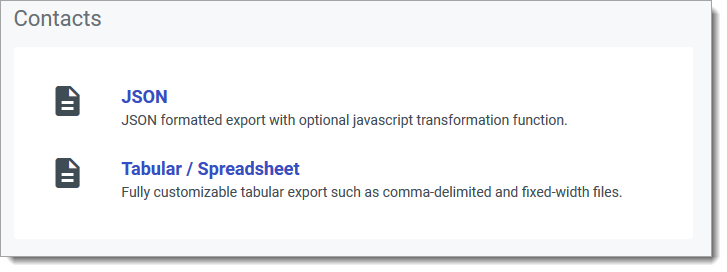
- Continue configuring the export using the instructions below, based on which export type you’ve selected.
Configuring JSON Contact Exports
Follow the steps above to select a JSON export. Then:
- Enter a name for the export file.
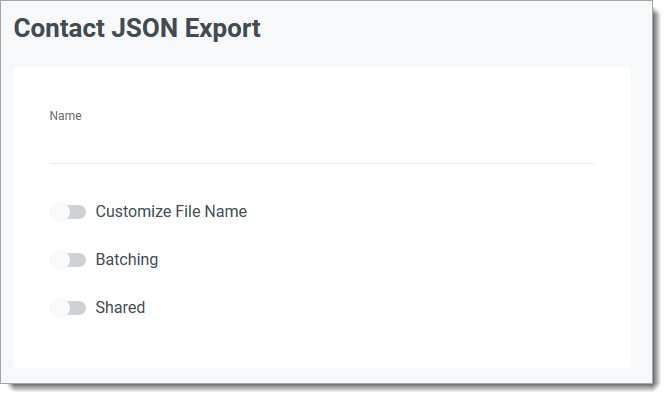
- If desired, select Customize File Name to create a file name with variable text. For example, you can include a date as a variable in the file name so that the date the export was generated is listed in the file name. See Variable Text Options below for more guidance.
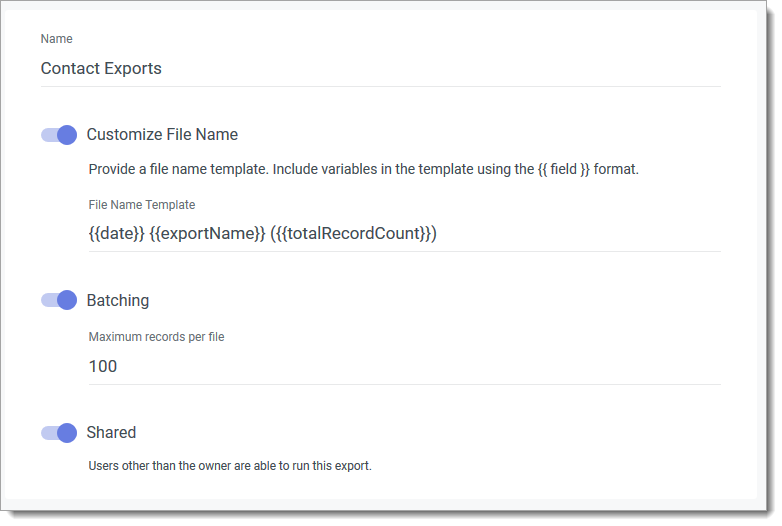
- If desired, select Batching to group records in the same .zip file.
- If applicable, select Shared so that other CSU Transfer Planner users can run this export.
- Under the Output section, select if you want to export:
- Everything: all available fields in CSU Transfer Planner will be included in the file.
- Selected Fields: you can select the fields to include in this export by clicking or dragging and dropping them.
- Custom: you can enter JavaScript code to transform your desired data.
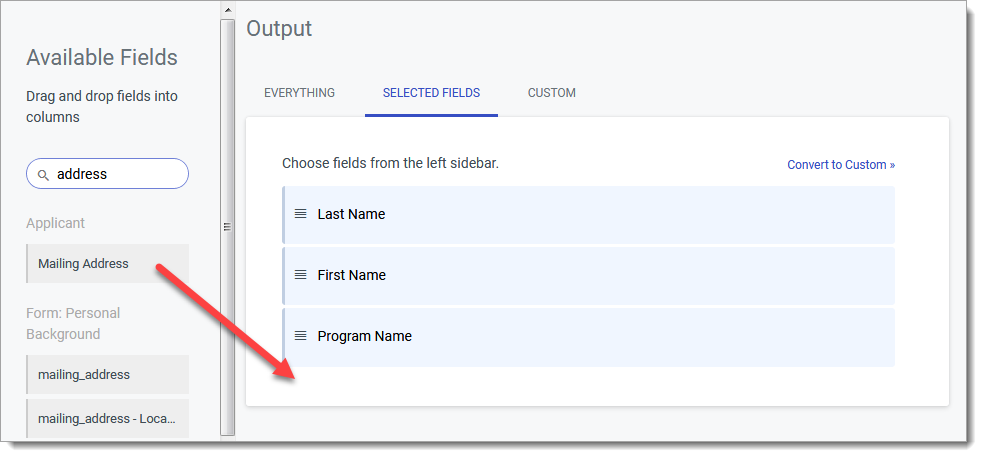
- If desired, click the translation table icon or field expression icon to further customize your export.

- Under the Schedule section, click the plus icon to add a schedule. You can set the frequency, add filters, and select the delivery method as needed.
- Click Create Export to save your template.
Configuring Tabular / Spreadsheet Contact Exports
To configure a tabular or spreadsheet export:
- After clicking Create Export on the Exports page, select Tabular / Spreadsheet.
- Name the export file, and select from the Comma Delimited, Tab Delimited, or Fixed Width style types.

- If desired, you can enable the Customize File Name option, allowing you to create a file name template with variable text. Note that this is an advanced feature requiring knowledge of database field names. See Variable Text Options below for more guidance.
- If desired, you can enable the Batching option, causing the software to group several records together in the same .zip file.
- In the Columns area, you can add fields to include in your export. To add fields, find them on the Available Fields panel and click to add them. You can also drag-and-drop them into your desired order.

- Click the plus sign near any section to add all of its fields. Selected fields appear with a checkmark.
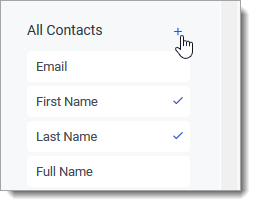
- If you've created Translation Tables, you can click Choose a table icon to apply one of your tables. This allows you to convert the data output from this field into your preferred format.
- If desired, use the field expression icon to customize your export.
- In the Schedule area, if desired, click the plus sign to configure a schedule.
- When you’re done configuring the export, click Create Export.
Variable Text Options
You can include these variables in your export file name. For example, you can include a date as a variable in the file name so that the date the export was generated is listed in the file name.
Note that this is an advanced feature that requires knowledge of the database field names. Additionally, variables must be surrounded by double curly brackets.
- applicant.fullName
- applicant.familyName
- applicant.givenName
- program.name
- program.id
- minute
- hour
- date
- year
- month
- dayOfMonth
- totalRecordCount
- exportName
- fileRecordCount
- fileNumber
- fileCount
Reviewing Export History
CSU Transfer Planner keeps a record of all exports you've completed in the software. To review the history:
- Click Activity on the Menu Bar.
- Click Downloads.
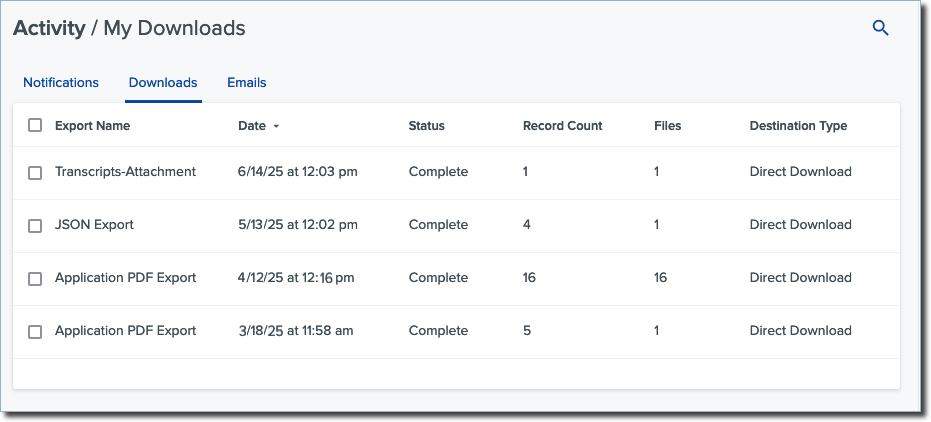
- Here, you'll see logs of your exports over the past 90 days.
To download another copy of an export, click its name. Note that this reproduces the export file as it was when it was exported, so any updates in the data since that time will not be reflected in the file.