
Migrating TargetX Data to Custom Fields in WebAdMIT
Overview
Use the TargetX to WebAdMIT data migration process to transfer data from TargetX into custom fields in WebAdMIT.
This automated process works as follows:
- TargetX exports a CSV file via Informatica to a designated folder on the Informatica server.
- A Python script running on the Informatica server picks up the CSV file and uses the WebAdMIT API to load the data into the appropriate custom fields in WebAdMIT.
- After processing, the script archives the CSV file for data retention and auditing purposes.
Prerequisites
To set up this migration process, make sure the following requirements are in place:
Server and software
- A Windows-based Informatica server to host the Python script.
- An account with administrator rights on that server so you can install software and manage services.
- Notepad++ (or another text editor) installed on the server to edit the Python script and configuration files.
- Python installed on the same server that will run the script.
Existing integrations and fields
- An existing CAS (WebAdMIT) → TargetX data integration configured through Informatica.
- The Program ID (For WebAdMIT API) field is included in your existing CAS → TargetX data integration.
- If Program ID is not currently included, update your WebAdMIT → TargetX integration to add this field; you may need to create a new field in TargetX to store the Program ID (For WebAdMIT API) value.
Environment configuration
- Configure the required TargetX export fields in both your sandbox and production environments.
- Create and configure the corresponding WebAdMIT custom fields in both the prelaunch and production environments.
Creating Custom Fields in WebAdMIT
Identify the fields you want to migrate from TargetX to WebAdMIT. Then, create custom fields in WebAdMIT that will be the destination for this data.
Retrieving Your User Identity ID
You can retrieve your User Identity ID in two different ways, either with or without Postman.
Retrieving Your User Identity ID with Postman
To use Postman to retrieve your User Identity ID, follow these steps:
- Download the WebAdMIT API collection (updated 9/22/25).
- Download the WebAdMIT API Prelaunch environment and the WebAdMIT API Production environment (updated 9/22/25).
- From your Workspace, select the Collections tab and click Import.

- Select the WebAdMIT API collection and WebAdMIT API environments from your computer. It will automatically import. You should now see a collection created in the Collections section and an environment created in the Environments section.
- Click Environments, then the WebAdMIT Prelaunch environment. Add the API key you generated for your WebAdMIT account to the environment.
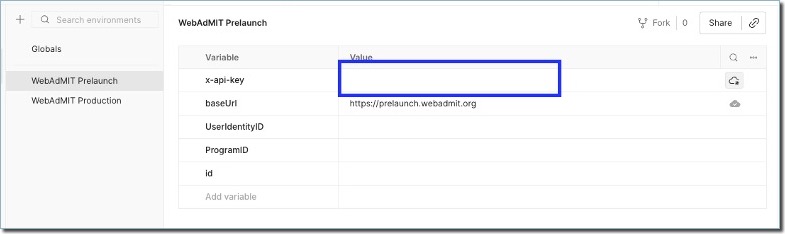
- Repeat step 5 for the production environment.
- Click Collections, then in the WebAdMIT Custom Fields grouping, select GET User Identities. In the drop-down in the upper right corner, select your WebAdMIT API Prelaunch environment.

- Click Send to retrieve the User Identities.

- Copy the number after “id” for the CAS and cycle you want to make updates and set this value as the “UserIdentityID” variable.

- Make note of the value for cycle. You will need to insert this value into a query (e.g., "2026 - 2027" with spaces surrounding the dash) so the export includes only applicants for the appropriate application cycle.
- If the API call fails, it will return a status code of 401. This indicates that the user is not authorized to access the API. Check the user’s permissions in WebAdMIT and verify that the user has the correct organization and program assignments.
Retrieving Your User Identity ID without Postman
To retrieve your User Identity ID without using Postman, follow these steps:
- Use CURL or POSTMAN to make the below API calls:
- PRODUCTION
Base URL: https://api.webadmit.org
$ curl -n https://api.webadmit.org/api/v1/user_identities \
  -H "x-api-key: <ENTER YOUR API KEY>"
- PRELAUNCH
Base URL: https://prelaunch.webadmit.org
$ curl -n https://prelaunch.webadmit.org/api/v1/user_identities \
-H "x-api-key: <ENTER YOUR API KEY>"
- Make sure to use the correct API Keys for PRELAUNCH and PRODUCTION.
- A successful API call should generate a status code of 200 with the following example response body:
{
"href": "/api/v1/user_identities",
"user_identities": [
{
"id": 42,
"type": "Admissions User",
"association": "SOPHAS",
"institution": "Demo University",
"organization": "Demo University School of Public Health",
"cycle": "2014 - 2015"
}
]
}
- Make note of the number after "id":. Corresponding to the cycle for which you want your applicant custom fields updated, this is the identity ID and is needed for prelaunch and production. You'll use this in the next section.
- Make note of the value for cycle. You will need to insert this value into a query (e.g., "2026 - 2027" with spaces surrounding the dash) so the export includes only applicants for the appropriate application cycle.
- If the API call is unsuccessful, then it will return a status code of 401. This means the user is not authorized to gain access to the API. Verify the user’s permissions in WebAdMIT and confirm that the user has the correct organization and program assignments.
Retrieving the IDs of Custom Fields in WebAdMIT
Option 1: Making API Calls to Retrieve Custom Field IDs in WebAdMIT
You can retrieve the the custom field IDs in WebAdMIT either with or without using Postman.
Retrieving Custom Field IDs with Postman
To use Postman to retrieve the custom field IDs, follow these steps:
- In Collections, under the WebAdMIT API Data Import grouping and the Custom Fields folder, select GET Program IDs.
- Ensure that the correct environment is selected (prelaunch or production) in the upper right corner and click Send.

- Populate the environment variable with the program ID.

- In Collections, under the WebAdMIT API Data Import grouping and the Custom Fields folder, select GET Custom Field IDs. Ensure that the correct environment is selected (prelaunch or production) in the upper right corner and click Send to retrieve the custom field IDs.

- Make note of the number after "id" for each of the custom fields. You will need the IDs to build the export.
Retrieving Custom Field IDs without Postman
To retrieve the custom field IDs without Postman, proceed as follows. Note that the examples below are for WebAdMIT production. To make this code viable for prelaunch, use https://prelaunch.webadmit.org as your base URL.
- Make the following API call to retrieve the Program ID associated with the user identity ID:
$ curl -n https://api.webadmit.org/api/v1/user_identities/:<ENTER USER_IDENTITY_ID>/programs/
-H "x-api-key: <ENTER YOUR API KEY>"
- Make the following API call to retrieve the custom field IDs:
$ curl -n https://api.webadmit.org/api/v1/user_identities/:<ENTER USER_IDENTITY_ID>/programs/:<ENTER PROGRAM_ID>/custom_fields \
-H "x-api-key: <ENTER YOUR API KEY>"
- A successful API call should generate a status code of “200” with the following example response body:
{

"href": "/api/v1/user_identities/1/programs/42023191739237/custom_fields",

  "custom_fields": [
    {
      "id": 4,
      "label": "Preferred house",
      "field_type": "select",
      "options": [
        "Gryffindor",
        "Hufflepuff",
        "Ravenclaw",
        "Slytherin"
      ]
    }
  ]
}
- Make note of the number after "id" for each of the custom fields.
Option 2: Manually Retrieve Custom Field IDs in WebAdMIT
- Log in to WebAdMIT prelaunch or production.
- Click Custom Fields in the Management section of the Navigation Panel on the left.
- From the Custom Fields Manager page, click the pencil icon on the right of your desired custom field.

- In the URL of the properties page that opens, you'll find the ID for that custom field.

- Repeat this process for each needed custom field to capture their IDs.
Note that custom field IDs are different between prelaunch and production, so you'll need to complete this process for each environment as needed.
We recommend that you create a data mapping document for each cycle to capture the WebAdMIT Custom Field Label, Custom Field IDs, and Custom Field Data Types, as seen in the example below.
WebAdMIT Data Mapping Example
|
WebAdMIT Field Label |
WebAdMIT Field Type |
WebAdMIT Field ID (Prelaunch) |
WebAdMIT Field ID (Production) |
|---|---|---|---|
| Number Field | Numeric | 2271421 | 2571462 |
| Date Of Birth | Date | 2117817 | 2581764 |
| Mobile Opt In | Yes/No Value | 2118714 | 2297871 |
| Name | Text Value | 2714171 | 2237848 |
| Text Value | 2178171 | 2267413 | |
| First Name | Text Value | 2215871 | 2295373 |
| Interview Status | Select From List | 2281917 | 2246458 |
Configuring the TargetX Export
To get data from TargetX to WebAdMIT via Informatica, you need to set up Informatica export tasks.
Here’s a quick walkthrough:
- Import the attached zip [Custom Fields.zip] file into your Informatica.
- Select the connections for your flat file dropbox and TargetX Salesforce (sandbox or production).
- Choose your runtime environment.
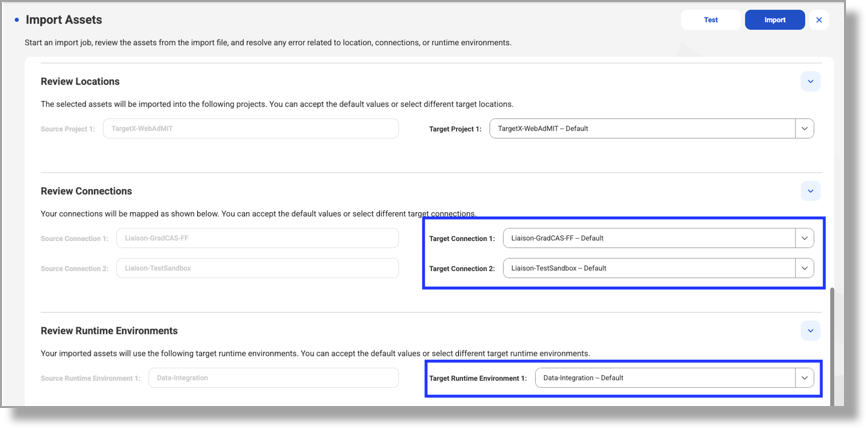
- Test the import and click Import.
- Once imported, you will see 4 tasks created (2 mappings and 2 mapping tasks).

- Open the TargetXExport Mapping – this task will create an export out of TargetX with the required fields to import into WebAdMIT.
- Click Source and confirm the correct Connection is set.
- Click Edit Query.

-
- In the query, replace TargetX_SRMb__Application_Fee_Payment_Received__c with whatever field you are wanting to import into WebAdMIT, as well as the WebAdMIT_Program_ID__c field with the WebAdMIT Program ID field from your instance of TargetX.
- You may also edit the filter of the export, which starts after the WHERE statement.
- In the query, replace TargetX_SRMb__Application_Fee_Payment_Received__c with whatever field you are wanting to import into WebAdMIT, as well as the WebAdMIT_Program_ID__c field with the WebAdMIT Program ID field from your instance of TargetX.

- Now click Filter and edit the Filter Condition with the WebAdMIT Program ID field from your instance of TargetX.

- Finally, click Target and ensure that all fields are included on the Incoming Fields tab.

- Save this task before closing.
- Open the TargetX-WebAdMIT Mapping – this will take the csv exported from TargetX and format/map a file to import into WebAdMIT.
- Click Expression and edit the DECODE statement with the field you are wanting to import into WebAdMIT.

- Edit the Cycle and Association (CAS name).
- The value of the cycle must correspond with the cycle as it appears in WebAdMIT (e.g., "2026 – 2027", with spaces surrounding the dash).
- The value of the cycle must correspond with the cycle as it appears in WebAdMIT (e.g., "2026 – 2027", with spaces surrounding the dash).
- In the Target, ensure that the following fields are included in Incoming Fields.
- Answer
- Association
- Cycle
- TargetX_Base__CAS_Applicant_ID__c
- Your WebAdMIT Program ID field

- On the Target Fields tab, ensure that the fields are in the following order:
- TargetX_Base__CAS_Applicant_ID__c
- Your WebAdMIT Program ID field
- Cycle
- Association
- Answer
- The import script will be looking for a file with the fields in this specific order.
- If you need to change the order, check the field you want to move and the arrows next to the Find field will become active.

e. Save this task before closing.
- Open the TargetX-WebAdMIT Mapping Task
- In Runtime Options, open Advanced Options and edit the Post-Processing Commands based on your Informatica folder path; leave the file names as is.
del YOUR INFORMATICA PATH\dropbox\SfCustomFieldsExport.csv* && copy /b YOUR INFORMATICA PATH \dropbox\header.csv + C:\Informatica\GradCAS\dropbox\data.csv YOUR INFORMATICA PATH \dropbox\TargetXToWebAdmit.csv && del YOUR INFORMATICA PATH \dropbox\data.csv && move /Y " YOUR INFORMATICA PATH \dropbox\TargetXToWebAdmit.csv" "DRIVE (i.e. C:)\TargetXToWebAdmit\" - Save this task before closing.
- In Runtime Options, open Advanced Options and edit the Post-Processing Commands based on your Informatica folder path; leave the file names as is.
Python Installation
You'll need to install Python on the server that will be hosting the script. To do so:
- Download the software from https://www.python.org/downloads/.
- Download the latest release for Windows (based on whether the server is a32 bit or 64 bit).
- Once downloaded, run the Python install file as an administrator.
- This opens an installation window:

- Click Customize Installation to display Optional Features:

- Ensure that pip is selected.
- The next page displays advanced installation options:

- Select the path to install Python and click Install.
- Once Python is successfully installed, restart the server.
- Once restarted, navigate to your system environment variables to ensure Python is appended to the end of the PATH variable. If it is not, you will need to add it. The path should be the path to the Python executable, such as C:\Users\username\AppData\Local\Programs\Python\Python314
- To test that your Python installation was successful and added successfully to your PATH variables, run Command Prompt as an administrator, type python, and click enter:

- If the response is similar to “Python is not recognized as an internal or external command,” it could mean that the PATH variable is not correctly set up or that your Python was not correctly installed.
Editing the Python Script
- Download the Python script and config.json file from Integration Help Center and place it on the Informatica server.
- On the server, create a folder called TargetXToWebAdMIT.
- Create a sub-folder called Archive.
- Place the Python script and the config.json file in the TargetXToWebAdMIT folder.
- The CSV file from Infomatica must also be dropped in the TargetXToWebAdMIT folder.
- Edit the config.json file in the TargetXToWebAdMIT folder using Notepad++ or Notepad and make the following changes:
- Change the Api_key value to your API key for prelaunch or production.
- Change the url_link value to prelaunch or production WebAdMIT url.
- PRELAUNCH URL-https://prelaunch.webadmit.org
- PRODUCTION URL-https://api.webadmit.org
- Change Working_dir to the full directory path of your TargetXToWebAdMIT folder. Note that the directory separations use "/".
- Set File_name to the name of the incoming CSV file from TargetX. This is the FinalFileName.csv that was added as a part of the post processing commands in your Target To WebAdMIT task.
Creating the Python Executable

Next, you'll need to create a Python executable that will run the script. To do so:
- Open Command Prompt as an administrator.
- Run the following command: pip install pyinstaller
- If you get an error message that pip is not recognized as an internal or external command, this means your Python installation did not include the pip package.
- The article How to Install PIP on Windows provides guidance on installing pip.
- Once installed, type pip –version in Command Prompt to verify if the installation was successful.
-
If pip installation was successful, rerun the pyinstaller command: pip install pyinstaller
- Run the following command to ensure the requests module gets installed correctly: pip install requests
- If pyinstaller and requests installation was successful, in Command Prompt, navigate to the TargetXToWebAdMIT directory.
- Type the following command: pyinstaller --onefile decisions.py and press enter.
- This command converts the script into an executable.
- The executable is found in the \TargetXToWebAdMIT\dist\ folder.
- Copy the config.json file from the TargetXToWebAdMIT folder to \TargetXToWebAdMIT\dist\ folder.
Testing the Executable
The following should be completed for prelaunch Outcomes to prelaunch WebAdMIT:
- Navigate to the \TargetXToWebAdMIT\dist\ folder in Windows Explorer and double-click decisions.exe to open a running Command Prompt window.
- If the Command Prompt window closes immediately after opening, then there is an issue with your Python code or the config.json file. In that case, navigate to the TargetXToWebAdMIT\dist folder and check the decisions.log file. If this file shows HTTP connection errors, this could mean that your API key, URL, or Cycle is incorrect.
- Edit the config.json file to make sure the file name, directory paths, API keys, base URL, and cycle are correct.
- Once verified, run the executable again.
- If the executable continues to run, this means the JSON file is correct.
- Run the Informatica tasks configured for this process to drop a csv file into the TargetXToWebAdMIT folder. The executable will pick up, process, and archive the file.
- Navigate to the Archive folder under TargetXToWebAdMIT\Archive folder. You will see a timestamped_yourfilename.csv file.
- Open the file, and you will see HTTP status codes printed in each row.
- Successful loads would have a status code of 200, while unsuccessful loads would have a status code of 404 or 422.
- The 404 status code could indicate several issues, including the Decision ID not existing in WebAdMIT, incorrect authentication methods (api_key), or CASID not found in WebAdMIT.
- If error 422 is thrown, the applicant has already had a local status associated with their record.
- Note that Decision Codes in WebAdMIT can only be updated via API for applicants that do not already have a Local Status associated with them.
- If all rows show a 200 for each field, then the next step is to check prelaunch WebAdMIT to ensure the decision data was correctly applied in WebAdMIT.If all looks good, then close the running executable command prompt window and delete the archived file.
Setting the Python Executable as a Windows Service
- To keep the script running indefinitely, the following steps are required to set up the Python executable as a windows service. For this purpose, you'll need to install a tool called NSSM (Non-Sucking Service Manager).
- On your web browser on the Windows server meant to host the script, navigate to https://nssm.cc/download
- Download the latest release of NSSM which is nssm 2.24.
- This should download a zip file called nssm-2.24.zip.
- Extract the zip file in the TargetXToWebAdMIT folder.
- Open Command Prompt as an administrator, and within Command Prompt, navigate to TargetXToWebAdMIT\nssm-2.24\win64 (or win32, depending on your Windows server). Run the command: cd PATH\TargetXToWebAdMIT\nssm-2.24\win64.
- Run the following command by replacing the paths to your Python executable and python (.py) file. Name your service so it is easy for the CAS you are working with to recognize, for example:
- nssm install "TargetXToWebAdMIT" "PathTo\dist\main.exe" "PathTo\main.py"
- If the service is successfully installed, it displays the following message in command prompt Service " TargetXToWebAdMIT" installed successfully!
- Open services.msc in Windows as an admin and locate the TargetXToWebAdMIT service.
- Start the TargetXToWebAdMIT service.
Testing the TargetXToWebAdMIT Service
- To test the service, navigate to Testing the executable and perform steps 6 to 14.
- If the test is successful, stop the TargetXToWebAdMIT service in services.msc and delete the archived file.
- After all testing is completed and preparations are being made to move to production then perform the following steps to remove the service:
- Open Command Prompt as an administrator, and within Command Prompt navigate to TargetXToWebAdMIT\nssm-2.24\win64 (or win32, depending on your Windows server).
- Run the following in Command Prompt: nssm remove “TargetXToWebAdMIT”
- A dialog will open to ask if you want to remove the service, click Yes, and it should say the service was successfully removed.
- Open services.msc as an admin and refresh the services to ensure the TargetXToWebAdMIT service is not in the list of services.
- Open Command Prompt as an administrator, and within Command Prompt navigate to TargetXToWebAdMIT\nssm-2.24\win64 (or win32, depending on your Windows server).
Moving the Script to Production
- After successful testing in prelaunch:
- Navigate to the TargetXToWebAdMIT folder in Windows Explorer.
- Delete the following file and folders:
- Build folder.
- Dist folder.
- Main.spec file.
- Build folder.
- Update config.json file found in the TargetXToWebAdMIT folder with production API keys and URL.
- Save the file.
- Perform the steps found in Creating a Python executable section.
- Perform the steps found in Setting the Python executable as a Windows Service section.
- Start the TargetXToWebAdMIT service.
- On the Informatica side, edit the mappings for Contact Export Mapping, Application Export Mapping, and the TargetX-WebAdMIT Mapping by changing the Source connection to be TargetX production. Make sure to save the mappings after this change and review the mapping tasks for each to ensure the change to the production TargetX connection is reflected.
- Edit the header.csv file found in the dropbox location and change the custom field IDs to be the ones for production WebAdMIT.
- Have Informatica drop a CSV file to the TargetXToWebAdMIT folder.
- Here you could run a smoke test by running each of the informatica tasks manually and filtering out just one applicant. If the one-applicant load succeeds, run a manual test for all applicants before adding the tasks to your linear flow.
- Check the archived file for status codes for a successful load.
- Cycle Over Cycle Changes
- Cycle over cycle, review your custom fields in WebAdMIT and make note of any new custom fields that need to be added.
- If new custom fields are added, make sure you follow the steps in Retrieving the Ids of Custom Fields in WebAdMIT and configure your Informatica export to match accordingly.
- Edit the filter conditions for the Application mapping as well as the TargetX-WebAdMIT mapping to match filters required for the new cycle. These would be stored in the query options section for each of the sources for the mentioned mappings.
- Change the cycle value in the TargetX to WebAdMIT mapping expression:

- Stop the TargetXToWebAdMIT service.
- Edit the config.json file in your TargetXToWebAdMIT and \TargetXToWebAdMIT\dist folders.
- Update the filename if you plan to use a new filename for the new cycle in the config.json file.
- If you plan to use a completely new WebAdMIT user for the new cycle, change the API Key in the config.json file.
- Save the config.json file in the TargetXToWebAdMIT and \TargetXToWebAdMIT\dist folders with the changes.
- Edit the header.csv file in the dropbox folder and change the Custom Field IDs, to the new cycle custom field IDs and save the file.
- Start the TargetXToWebAdMIT service.
Cycle Over Cycle Changes and Special Considerations
Review the following information regarding maintaining this process from cycle to cycle, and other considerations.
Non-Overlapping Cycles
It is important to note that Decision IDs in Prelaunch and Production WebAdMIT change cycle to cycle. In preparation for the next cycle, complete the following steps:
- Revisit the Retrieving the Decision IDs in WebAdMIT section to grab the new Decision IDs.
- Update the Informatica Answer DECODE statement with the new Custom Field IDs.
- In the Informatica expression, update the Cycle value to the new years (e.g., "2026 – 2027", with spaces surrounding the dash).
- The TargetXToWebAdMIT service may continue to run; no changes are needed to the script or the config file.
Overlapping Cycles
If a new cycle opens while the previous cycle is still active, updates to the Informatica expressions will be required. Complete the following steps to add a new cycle:
- Revisit the Retrieving the Decision IDs in WebAdMIT section to grab the new Decision IDs.
- Update the Informatica Answer DECODE statement with the new Custom Field IDs. Additionally, you will need to add the cycle so the expression knows which set of IDs to use.
- In the Informatica expression, update the Cycle value to the new years (e.g., "2026 – 2027", with spaces surrounding the dash). Additionally, you will need to use TargetX_SRMb__Start_Term_Year__c to the expression to indicate which cycle should be used.
- Add a schedule to the new cycle’s taskflow that runs at a different time than the existing taskflow. The TargetXToWebAdMIT service is looking for a specific file name, and while both can export the same file name, they cannot be on the SFTP at the same time without overwriting each other.
- The TargetXToWebAdMIT service may continue to run; no changes are needed to the script or the config file.
Multiple CASs
If you have multiple CASs that need this script in WebAdMIT, you may run the same script with different exports that have the appropriate information configured. The file name will need to be the same across all exports. Have the exports run to the SFTP at different times.