Changing Date Formats
When importing data into another system, you may be required to use a specific format for dates. Using this Java Script expression, you can convert dates from the default format, into the format of your choice.
Note that this functionality is now available in Exports without the use of JavaScript.
Determine Which Format to Use
Before configuring the JavaScript for this conversion, you'll need to determine which format you want dates to be exported in. By default, Admissions by Liaison uses this date format in most cases: yyyy-mm-dd hh:mm:ss.s (e.g., 2021-10-06T15:38:58.836535Z).
When converting dates, the following options are available:
- YYYY-mm-DD (e.g., 2022-08-25)
- mm/DD/YYYY (e.g., 08/25/2022)
- YYYY-mm-DD HH:MM:SS (e.g., 2022-08-25 15:05:01)
- HH:MM:SS (e.g., 15:05:01)
Add the JavaScript Code
You have two options when adding the JavaScript Code for this expression:
- Create a Custom Property using this code. Once created, Custom Properties are listed among the Available Fields in the Export Builder.
- Add the JavaScript expression directly from the Export Builder by selecting the Custom option from the Available Fields menu, and dropping it into the Columns window.
In either case, you'll have an Expression area to add your code and configure it as desired. To complete this process:
- In the Expression area, add the following code. (Use the view source icon at the top right to copy the code snippet.)
{
/* * * * * * * * * * * * *
 * * USER INPUT SECTION * *
 * * * * * * * * * * * * */
// use this field to define the field to extract date from
// follows format of (typeof FIELD_KEY != "undefined") ? FIELD_KEY: null;
// User should only replace value of FIELD_KEY
var dateField = (typeof decision_Date != "undefined") ? decision_Date : null;

// use this field determine the type of data format
// type1 = YYYY-mm-DD
// type2 = mm-DD-YYYY
// type3 = YYYY-mm-DD HH:MM:SS
// type4 = HH:MM:SS
var dateType = "type4"

// use this field to indicate the type of spacing (not applicable to time formats)
// example: ":"
// example: "-"
// example: "/"
var spacerType = "/"


/* * * * * * * * * * * * * * * * * * * * * * * * * * * * * * * * * * * * * * * * * * * * * * *
   DO NOT EDIT: This function takes three inputs to return a single date field.
 * * * * * * * * * * * * * * * * * * * * * * * * * * * * * * * * * * * * * * * * * * * * * * * */


function getATSShortDateFormat(dateType, dateField, spacerType) {

    if ((typeof dateField != "undefined") && (dateField != "") && (dateField != null)) {

        if (dateType == "type1") {

            return dateField.slice(0, 4) + spacerType + dateField.slice(5, 7) + spacerType + dateField.slice(8, 10);

        } else if (dateType == "type2") {

            return dateField.slice(5, 7) + spacerType + dateField.slice(8, 10) + spacerType + dateField.slice(0, 4);

        } else if (dateType == "type3") {

            return dateField.slice(0, 4) + spacerType + dateField.slice(5, 7) + spacerType + dateField.slice(8, 10) +
                " " + dateField.slice(11, 19);

        } else if (dateType == "type4") {

            return dateField.slice(11, 19);

        } else {

            return;

        }
    } else {
        return;
    }

}
return getATSShortDateFormat(dateType, dateField, spacerType);
}
- Replace the field key (entered above as decision_Date) with the key for the date field you need to convert.
- Enter the value for the variable field dateType (listed above as type4) based on the date format you want to use:
- For YYYY-mm-DD enter type1
- For mm-DD-YYYY enter type2
- For YYYY-mm-DD HH:MM:SS enter type3
- For HH:MM:SS enter type4
- Set the value for spacerType to indicate what type of separator you'd like to use.
- For semicolons (:), enter var spacerType = ":"
- For dashes (-), enter var spacerType = "-"
- For forward slashes (/), enter var spacerType = "/"
Finding the Field Key to Use
To replace the format of one of the date fields, you'll need to know the field key for that field. For example, the Decision Date field uses a field key of decision_Date, as seen in the code above. To find the keys you need, search the Field Dictionary or follow the appropriate method below.
For Fields Built Into the Application
If the field you want to use is standard on the application, you can find its related key in the Application Properties section of the Settings menu. To do so:
- Go to Application Properties in the Application Setup section of the Settings menu.

- Click Manage.
- The keys are listed next to their associated field name.

- Place the appropriate key in the code as described above.
For Fields Added to Application Forms
You may also wish to convert date fields that are included on Applicant Forms or Evaluation Forms. To find the key from a field included on an Applicant Form:
- Navigate to Applicant Forms in the Application Setup section of the Settings Menu.

- Select the Form that your desired date field is contained within.
- The field key you need is located near its associated question.
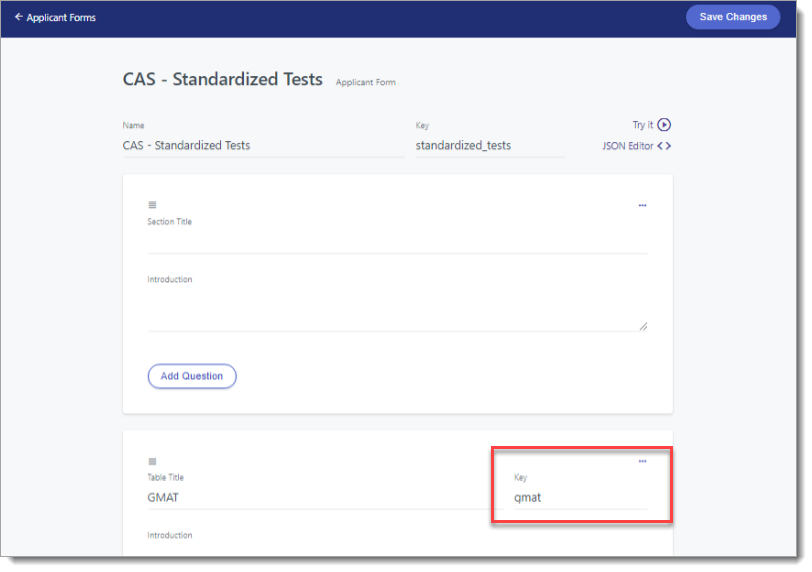
- Place the key in your code as described above.
Note: To use fields added to Evaluation Forms, go to Evaluation Forms in the Application Review section of the Settings Menu. Then follow steps 2 through 4.