Removing Special Characters from Export Fields
When you import data from Outcomes into another system, there may be compatibility issues due to unsupported characters in some fields. For example, if you're exporting course names, there may be some that appear with slashes, ampersands, or other special characters. If these are not compatible with the system you are importing into, you may wish to remove these characters completely before exporting the fields.
From this article, you'll learn how to use a JavaScript expression in your exports to remove these special characters and, if necessary, enforce a character count limit.
These special characters include exclamation points, question marks, ampersands, semicolons, mathematical symbols, and more.
To accomplish this configuration, you'll need to complete the following:
- Create an export template with a Calculated Field.
- Add a JavaScript expression to that field to remove special characters.
- Update the expression to specify the field you want to modify (e.g., course name).
Setting Up the Export
To complete this configuration, you'll need to add a Calculated Field to a Tabular/Spreadsheet Export. You can do this while configuring your Export by dragging a Calculated Field into the Columns to export.
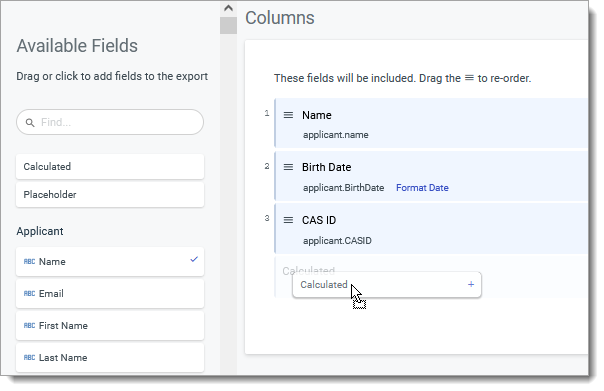
After dropping in the Calculated Field, use the JavaScript Expressions option by clicking the function icon and dropping the code listed below into the Expression field.
Then, update the code to indicate which field you are exporting.
JavaScript Code
While following the steps above, use the following code in your JavaScript Expression:
{
  let form = "formKey_goes_here";
  let question = "questionKey_goes_here";
  let charlim = 30;
  if (forms[form]) {
    let course = forms[form][question];
//strip special characters
  course = course?.replace(/\!|\@|\#|\$|\%|\^|\&|\*|\(|\)|\_|\+|\'|\ʻ|\=|\:|\;|\<|\>|\?|\,|\.|\"|\|/g,"");
  if (course){
    return replaceAccents(course)?.substring(0,charlim);
  }
    }
  else {
    return "";
  }
}
Modify the Code
Once you've added this code to your JavaScript expression, you'll need to modify it to indicate which field you want to remove the accented characters from. Each form in the software has a key associated with it. Each field within each form also has a key. You'll need to use these keys to replace the variables listed in the code.
For example, to use this code on a field in one of your application forms:
- Find the key for the form you're taking data from. Use that to replace the formKey_goes_here on the let form = line.
- Find the key for the specific question/field that you want to remove special characters from. Use this to replace the questionKey_goes_here on the let question = line.
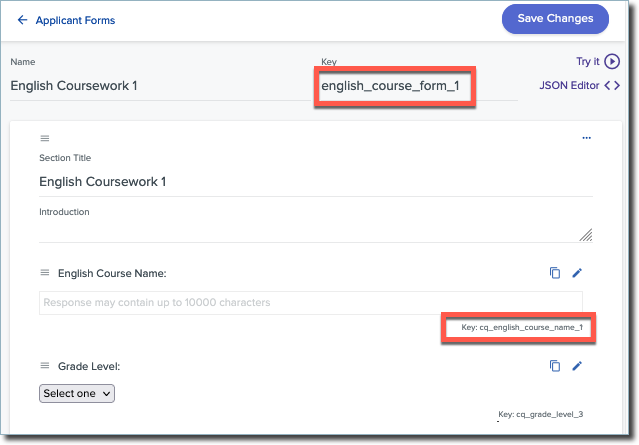
- In the example above, the form key is english_course_form_1 and the question key is cq_english_course_name_1. To use this configuration for that field, the first two lines of your updated code would look like:
  let form = "english_course_form_1";

  let question = "cq_english_course_name_1";
- If desired, you can also adjust the character limit. This allows you to set a limit for the number of characters that can be exported from this field. By default, the character limit is 30, so any additional characters will be removed. To adjust this limit, change the 30 in the let charlim = 30 line to the number of your choice.
- After modifying the JavaScript Expression from the export, click Update.
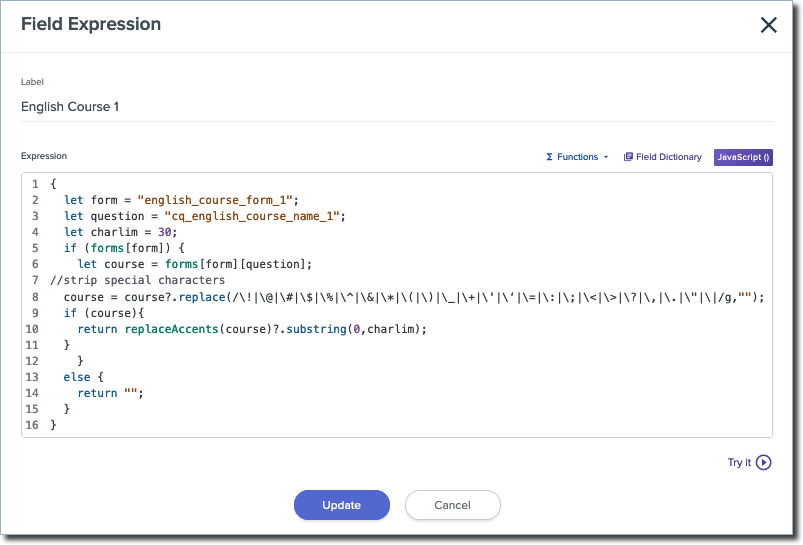
- If there are other fields you need to remove special characters from, continue adding Calculated Fields and repeat the steps as described above. Then run your export.
Testing the Code
While building the export, click the Try It button at the bottom right of the Expression window to confirm that your adjustments are working.
Search for a record to complete your tests with. Confirm that the appropriate value appears in the Output window.