Deleting test Contact records
There are two ways to delete test Contact records:
Option 1
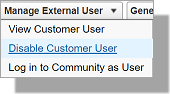
Manually go to each Contact record, click the Manage External User button and select Disable Customer User. Once you have disabled the user you can now click Delete and delete the contact.
Option 2
Using either Data Loader or Informatica, update the Test User Records you want to disable by mapping FALSE to the field IsPortalEnabled. This will disable the Community User.
Important: ensure you have filtered and are only updating Test Records or Records you wish to delete. If you disable an active User, the Student will need to recreate their user account to sign back into the system.
Informatica steps
Set the following details when creating an Informatica task to update the Test User Records you want to delete:
-
Set the Task Definition:
- Select Update Task
- Set the task name to 'Disable Community Users'
-
Specify the Source:
- Connect to Salesforce
- Set the Source Type to 'Single'
- Set the Source Object to 'User'
-
Define the Target:
- Connect to Salesforce
- Set the Target Object to 'User'
-
Set the Data Filters:
- Set the Row Limit to 'Process all rows'
- Select New Data Filter - set the data filter based on the criteria for your test records.
-
Define the Field Mapping:
- Clear all your mappings.
- Your field mapping must have a User Id. Select the User ID field and the 'IsPortalEnabled' field.
- For 'IsPortalEnabled' - add the value 'FALSE'
-
Schedule and Run the task.
Important: be sure to TEST that your filter criteria is correct. You can set the Target to your dropbox and create a file to validate that the correct records are being selected. You will want to add additional fields to the mapping in order to validate the users included in the filter.
Data Loader Steps
-
Export the User object.
-
You can either create a filter here OR export ALL records and manually remove the unwanted records from the file.
-
-
Select the following Fields:
- IsPortalEnabled
- Username
- First Name
- Last Name
- User ID
- Process and Create the file.
- Open the file.
- Delete any rows that you DON'T want to disable.
- Ensure that any remaining records have IsPortalEnabled set to FALSE.
- Go back to Data Loader and select Update.
- Select the User object.
- Browse for the file you updated above and select Next.
- Map the fields (or select 'auto-match'):
- Id
- IsPortalEnabled
- Select Next.
- Select Finish.