
Resetting Twilio settings for SMS Inbox
Follow these steps to ensure your Twilio Messaging Service is correctly integrated with TargetX by updating the Request URL, and then retrieve and manage missed messages by using the Monitor tab for log filtering and export.
Update the Request URL in Twilio
- Log in to Twilio.
- On the Develop tab in the left pane, choose Messaging > Services.
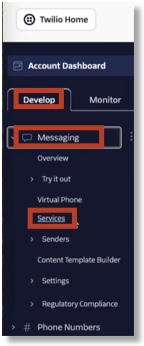
- Use the Search by SID to locate your impacted messaging services (refer to the list provided by TargetX).
- Click the name of the Messaging Service.
- Choose Integration on the left navigation panel.
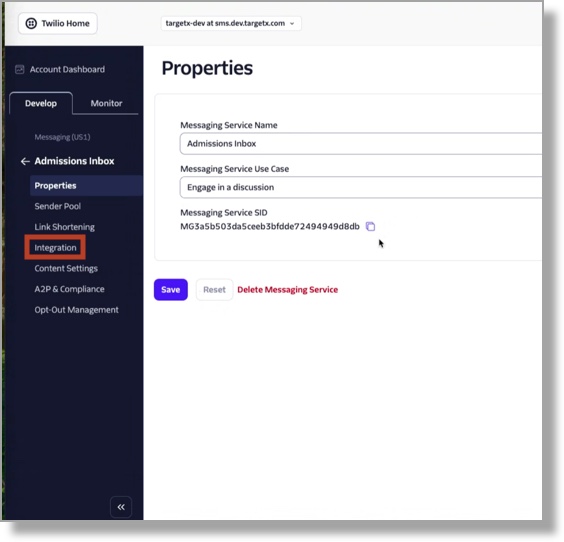
- Ensure the Send a webhook option is selected.

- In the Request URL field, paste the URL provided by TargetX.
Note: Inbox IDs can be located by navigating to TX SMS, selecting an inbox, and copying the inbox ID from the URL.
Example: https://[txsms].com/inboxes/0ed0a8d2-674e-49a1-7b1f-542f88062f90

Retrieving Messages You Might Have Missed
- Log in to Twilio.
- Go To Messaging >Services.
- On the Develop tab in the left pane, choose Messaging > Services.
- Use the Search by SID to locate your impacted messaging services (refer to the list provided by TargetX).
- Click the name of the Messaging Service.
- Switch to the “Monitor” tab on the left navigation panel.
- Click Logs, then Messaging.
- You can filter the Start Time and date as 2/13.
- Click Export to CSV in the top right corner to view messages.
