|
1
|
Create a Landing Page Digital Experience (Community)
|
This will be the Digital Experience that will be home to a new Portal page. The Portal will include links to your communities based on condition sets.
Item 1: Create New Digital Experience and Configure Site User Permissions
- Navigate to Setup and search for Digital Experiences.
- Select All Sites.
- Select New.
- Choose ‘Salesforce Tabs + Visualforce Theme’ option.
- Select Get Started.
- Choose a Name for your experience and a URL.
Note: this will be the Name for your Digital Experience and it will be referenced in System Emails. The URL will be unique for each site. You may choose to define the experience site types here (e.g. portal, application, appointments) and even define a specific group (e.g. gradapply, admitportal).
- Select Create.
It may take several minutes for the Digital Experience to be created, please be patient.
Item 2: Configure Site User Permissions
- Select Administration > Pages > Go to Force.com.
- Select Public Access Settings.
- You will be taken to a new Profile for your Experience, named “<Your Digital Experience Name>+Profile”. This is the GUEST user for your Experience site (i.e. Site User).
- Scroll down to the Visualforce Page Access section and add the pages listed in the TargetX Permission Viewer; Online Application (Site User).
Note: all communities should use the Online Application (Site User) permission definition, regardless of community type.
- Enable the Apex Classes listed in the TargetX Permission Viewer; Online Application (Site User).
- Grant the Object Settings permissions listed in the TargetX Permission Viewer; Online Application (Site User). Following the additional guidance regarding record types below:
- Account Object Settings: enable Administrative and Educational Institution record types.
- Contact Object Settings: enable Recruitment Manager Student record type.
- Test Object Settings: enable all Test record types.
- Payment Connector Object Settings: enable all Payment Connector record types.
- To validate permissions, use the TargetX Permission Scanner.
- Enable API access by navigating to System Permissions and checking the API Enabled checkbox.
- Save all changes as you go.
Disable Lightning Features for Guest Users
The Salesforce setting, Lightning Features for Guest Users, is enabled by Default. TargetX products do not require Lightning features, so we recommend you turn this setting OFF to limit access to your Sites:
- Navigate to Setup and search for Sites.
- Click the Site Label.
- Click Edit.
- Uncheck the Field for Lightning Features for Guest Users.
- Save your changes.

Item 3: Configure Organization-Wide Defaults for External Users
Note: if you have already configured a Community, this should already be configured.
Item 4: Configure Sharing Rules
- Please see the article Creating Sharing Rules to complete this step. Update each listed object based on the site type configured in your org.
Item 5: Create a Theme Template
- Navigate to Setup and search for Visualforce Pages.
- Click Edit next to the TX_CommunitiesTemplate.
Note: there are two pages with this name; choose the one that does not have a namespace prefix.
- Click Clone and name the cloned page, matching it to your Experience site.
- Edit the following lines to reflect your institution name:
- "header_school" value (e.g. TargetX University)
- "header_school_line_1" value ** (e.g. Image: Brown Hall)
- "header_school_line_2" value ** (e.g. Image: Students on Lawn)
- "header_program" value (e.g. Online Application)
**See below where these values will appear on your landing page. ALL values should be populated for ADA compliance. Consider adding image alt text to header_school_line_1 and 2.
Any values that you do not want to actually display can be hidden later by using css tags in the Community Theme record. See Hiding TX_CommunitiesTemplate Values for further guidance.

- Locate the following around line 75:
<apex:outputLink rendered="{!ISPICKVAL($User.UserType,'Guest')}" value="{!$Page.TX_CommunitiesHome}" styleClass="targetx-header-user">
- Replace !$Page.TX_CommunitiesHome with the following:
For Experiences using Dynamic Portal:
{!$Site.Prefix}/TX_SiteLogin?startURL=%2FTargetX_Base__Portal
Note: You should maintain the curly brackets that were originally around the replaced text.
- Click Save.
Item 6: Create a Community Theme
- From the App Launcher, search and select the Community Themes tab.
- Click New.
- Enter a Theme Name of your choosing (e.g. Appointments, Online Application).
- Add the following values:
- Template Name: insert the custom TX_CommunitiesTemplate record you created in Step 6. The format should include a “c__” at the beginning of the page name
(e.g. “c__TX_CommunitiesTemplatePortal”)
Note: there are 2 underscores after the 'c'' in the above examples.
- Static Resource update the field to
TargetX_App__NewResource
- Homepage is the name of the Visualforce page that loads after login. Update the field to
TargetX_Base__Portal
- Header Logo is the logo that appears in the top left corner of the screen in Applicant Dashboard and Events. This is the name of the Static Resource that contains the logo. This should be set for all records, regardless of the TargetX product in use. The size of this image is 70 px x 60 px and is a good size for using a shield or institution mascot. See: Creating a Static Resource.
- Header Text Line 1 is the text that appears in the first line of the Header in Applicant Dashboard and Events. This should be set for all records, regardless of the TargetX product in use. We recommend using the School Name.
- Header Text Line 2 is the second line of text that appears under the Header. . This should be set for all records, regardless of the TargetX product in use.For example, Application for Admission.
- Hero Text is the text that displays over the Hero Image.This is not required and is rarely used.
- Hero Image is the name of the Static Resource that contains the hero image, which is a full width image that displays directly below the header. The size of this image is 1336 px x 260 px; this is a different size than that used on the Sign-In page. This should be set for all records, regardless of the TargetX product in use.
- Save your changes.
Recommended Best Practice: each Digital Experience should have a DISTINCT Community Theme.
Item 7: Configure 'Related Sites'
Associate each Community Theme record to a Digital Experience site:
- Before configuring Related Sites you may need to update your Community Theme Page Layout. If you see the Related Sites tab already on the layout, you can skip to Item 2 below. If you do not see the Related Sites option, proceed here:
- Navigate to Setup.
- Locate and click the Community Theme object.
- Select the Page Layout section.
- Select to Edit the Community Theme Layout.
- From the page layout palette, select the Related Lists group and then drag the Related Sites item onto the page under the Related Lists section.
- Save your changes.
- Navigate to the Community Theme record for your new Digital Experience (that you created in Step 7).
- Click New Theme Site.
- Add a Site Name.
- Confirm the Community Theme is auto-populated with the previously created Community Theme record name.
- Add the URL of the related Digital Experience. This must be the secure (https) site URL.
To find the URL for your Digital Experience
- Navigate to Setup > Customize > Digital Experiences > All Sites.
- Locate the Digital Experience you created in the previous steps.
- Copy the URL for that record.
Item 8: Assign Custom TX_CommunitiesTemplate to Guest Site User
- Navigate to Setup and search for Sites.
- Click on the Site Label of the Digital Experience.
- Select Public Access Settings.
- Select Visualforce Page Access.
- Click Edit.
- Add the custom TX_CommunitiesTemplate (created in Step 6) to the Enabled Visualforce Pages.
- Click Save.
Item 9: Set up the Guest User Time Zone
The selected time zone directly impacts the available times shown in the Appointment Scheduler. The time zone set for the Site Guest User determines the time zone on their user record. If it's incorrect, the appointment times displayed will also be inaccurate.
- Navigate to Setup and search for Sites.
- Click on the Site Label of each Digital Experience.
- Select Public Access Settings.
- Select the Assigned Users button.
- Select edit on the Site Guest User.
- Set the timezone to the timezone of the school.
- Click Save.
Item 10: Restrict Standard Salesforce Access
These steps will allow you to prevent a Community User from accessing their information from standard Salesforce pages (e.g., Contact) via the Digital Experience/Community.
Salesforce states that it is common functionality to be able to reach standard Salesforce pages from the Community. If you choose not to configure the settings below, your Organization’s security and sharing settings will continue to limit users as expected. TargetX considers it a best practice to follow these steps:
- Restrict access to Standard Pages.
- Navigate to Setup and search for Sites.
- Click on the Site Label of the Digital Experience.
- Click Edit.
- Uncheck “Allow Access to Standard Salesforce Pages”.
- Click Save.
Item 11: Digital Experience Administration Configuration
- Navigate to Setup and search for Digital Experiences and then All Sites.
- Click Manage or Workspaces next to the Experience to be configured.
- Click on the Administration tile.
Make sure to Save at the bottom of each page.
- Preferences
- Uncheck “Show nicknames”
- Update the Default Owner to the client CRM Administrator
- Branding
- Header: TXStandardPageStopper (If you cannot locate this document, refer to Downloading the TXStandardPageStopper for instructions to create it.)
- Email
Note: Sender Email Address will default to the email of the user who created the community. Work with the client during implementation to update the email address to the appropriate value such as an org wide email address for admissions, advising, etc.
- Uncheck “Send welcome email”
- Update Forgot Password: TargetX Communities: New Member Welcome Email
- Update Change Password: TargetX Communities: Change Password Email
- Members (only complete this after you have unchecked the welcome email above)
- In Select Profiles, update the Search value to Customer
- Move the Customer Community User (TargetX) profile to the Selected Profiles box DO NOT REMOVE THE SYSTEM ADMINISTRATOR PROFILE
- Login & Registration
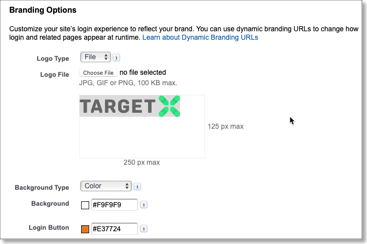
- Branding Options
- Update the Salesforce logo with your institution’s logo (Administration > Login & Registration > Logo Type/Logo File)
- Update the background and login button colors (Administration > Login & Registration > Background/Login Button)
- Login Page Setup
- Login Page Type: Visualforce Page | TX_CommunitiesLogin
- Password Pages
- Forgot Password: Visualforce Page | TX_ForgotPassword
- Reset Password: Visualforce Page | TX_ChangePassword
- Registration Page Configuration
- Check “Allow customers and partners to self-register” if this community can create new Contact records.
- Registration Page Type: Visualforce Page | TX_CommunitiesSelfReg
- Profile: Customer Community User (TargetX)
- Account: Community User Account (If you cannot locate this account, refer to Creating the Community User Account for instructions to create it.)
- Pages
- Home Page: Visualforce Page |
TX_CommunitiesLanding
|
|
2
|
Create a new Portal for the Landing Page
|
In this step, you'll create a Portal that will function as the 'Landing Page' for your Digital Experiences. You can make this as simple or as detailed as you wish. Include links to each community and define various sections for your other digital experiences. For details on creating the Portal, see Creating a Portal.
In the example below, each section has a defined Condition Set that determines what a user will see:
- No Decision Yet displays for any user whose Application Decision does not equal Accepted. The Online Application link directs the user to the Online Application community.
- Admitted Student Portal displays for any user where Application Decision equals Accepted. The Online Application link directs the user to the Online Application community, where they can review their application or decision information. The Admitted Student Portal links to a Portal with new student information, links to necessary forms, etc.
- Default has no condition sets defined and will display to any users that don't meet the other criteria. These links direct the user to different Applications your institution offers.

|

