Changing a Vanity Email
Configure your new Org-Wide Email address using the steps outlined in the article Configuring Org-Wide Email addresses. For more information on Organization-Wide Email Addresses, see the Salesforce Help & Training article: Organization-Wide Email Addresses.
Once you’ve configured your new Org-Wide Email address, verify that the email was changed in the following locations:
- Application Forms
- Events
- Communities
- Email Alerts
- Campaign Builder
- Zoom Integration
- Faculty Early Alerts
- Access Keys
Application Forms
Verify/Update any Org-Wide email addresses that have been configured on your Application Forms:

Note: you can create a new List View and include the Org Wide Email field to quickly review your forms. For details on working with List Views, see the Salesforce Help & Training article: Work with List Views in Lightning Experience.
Events
Email Sender
Verify/Update the Email Sender field on your Events:

Note: you can create a new List View and include the Email Sender field to quickly review your Events. For details on working with List Views, see the Salesforce Help & Training article: Work with List Views in Lightning Experience.
Event Default Email Sender
Review the Default Email Sender ID in Events Custom Settings. For details on setting the Default Email Sender in Events, see the article: Setting the default email sender in Events.

Communities
Communities Sites
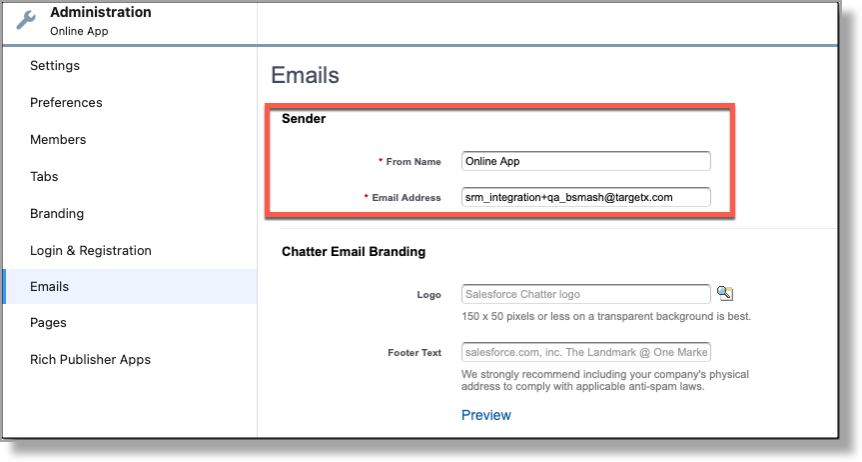
Review the From Name for each of your Sites:
- Navigate to Setup and search for Digital Experiences (formerly All Communities) and select All Sites.
- Click on the Workspaces link next to your Community, then select Administration > Emails.
- Review/Update the From Name and Email Address fields.
Email Alerts
Review any Email alerts associated with Active Flows:
- Navigate to Setup and search for Email Alerts.
- Review/Update the From Email Address for each Alert.

For details on Email Alerts, see the Salesforce Help & Training article: Email Alert Actions.
Campaign Builder
Review/Update the From Name/From Email and Reply Name/Reply Email fields in each TargetX Builder Campaign:
- Navigate to the Campaign Builder Overview tab.
- Select the Campaigns icon in the bottom navigation bar.
- Select the Edit icon for the Campaign you wish to review.
- Click the Details icon in the bottom navigation bar.
- Review/Update the From Name/From Email and Reply Name/Reply Email.

Zoom Integration
If you have implemented Zoom Integration with Salesforce and configured an outbound email for all your meeting invitation emails, you’ll want to review/update the Mail Default From Address in your Setting up Zoom connector in your org:

Faculty Early Alerts
If you are using Faculty Early Alerts Overview, verify the Org-wide Email Address listed for Kudos and Alerts:
- Navigate to TargetX Builder.
- Click the Faculty Early Alerts icon.
- Click on the Alerts/Kudos tab.
- Review/Update the From Email Address for each Kudo and Alert:

Access Keys
Verify the From Email in Access Key Settings. This is the email address that is used to send Access Key requests.
- Navigate to Setup and search for Custom Settings.
- Click Manage next to Access Key Settings.
- Review/Update the From Email for each record.
