
Liaison Academy User Management
Users
Self-Registered
Self-registered users are any users who are not TargetX. These users register from the sign-in page:

Once they enter an email and password, they are prompted to accept the Terms and then sent an email to validate their email address:

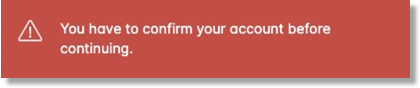
If they do not confirm their email, they will get an error at login:
Users that are not confirmed will display as N/A, and the user record will include a confirmation URL for the user that can be sent to the user if they did not get the email confirmation:

When users confirm their account, they are then required to enter a Name and complete any mandatory Custom user data:

At this point, they are logged in and can begin viewing the catalog, etc.
Salesforce Integration
Salesforce integration for TargetX users accessing Liaison Academy connects contact records to their training activity, allowing employees to view each contact’s assigned courses, enrollment history, and learning progress directly from Salesforce.
Creating TargetX Users
- Create a new Contact in SF.
- Enter First Name, Last Name, Email, and Account.
- Check the field for Create in LearnUpon in the LearnUpon tab on the Contact record.
- If the user should be a Manager for their Institution, you will need to check the Create as Manager in LearnUpon field after saving the Contact.
- For details on creating Managers, see Adding Managers.

Note: existing users were imported into LearnUpon, and they might not have the Create in LearnUpon field checked. This is expected and should not be checked unless instructed to do so by the E&K team.
- Save.
- User will be:
- Created in LearnUpon
- Added to the Group = their Account in Salesforce
- Added to the Group = TargetX
- Note: after they log in to LearnUpon and answer the question ‘Do you use TargetX?’, they are added to the Group = TargetX (self-reported) via a dynamic rule in LearnUpon.
- User will be:
- Choose Enable Customer User in SF.
- Choose the appropriate Community Profile.
- Save.
- Once enrolled in a course, the user’s courses will display on the LearnUpon widget on the SF Contact record:

For details on TargetX Groups, see Groups.
Data integration
If a user changes their email, they will open a support ticket, the email will be manually updated in SF, and then you should Sync Contact Info in LearnUpon.
Note: For SSO users, the LearnUpon email must match the email on the User record in Salesforce.
Existing users
Existing users were uploaded to LearnUpon, then flagged as ‘Create in LU’ on the Contact record.
TimeZone integration
Once the LearnUpon User ID is populated through the API, a Salesforce Flow triggers to assign the user to their Groups. The new LearnUpon user is initially set to the default Eastern Time (EST).
After a 15-minute delay, the Flow updates the user’s time zone based on the time zone stored on their related Account. SSO does not drive this update; it occurs solely when the LearnUpon User ID is written to Salesforce. The time zone is determined from the related Account using the following formula:
IF(
    {!$Record.Time_Zone__c} = "America/New_York",
    "Eastern Time (US & Canada)",
IF(
    {!$Record.Time_Zone__c} = "America/Chicago",
    "Central Time (US & Canada)",
IF(
    {!$Record.Time_Zone__c} = "America/Los_Angeles",
    "Pacific Time (US & Canada)",
IF(
    {!$Record.Time_Zone__c} = "America/Anchorage",
    "Alaska", "Eastern Time (US & Canada)"
))))
Note: this only assigns US time zones because time zones are configured in our internal Salesforce. A future project will be to clean up our internal Salesforce system to accommodate international time zones.
Troubleshooting Salesforce Contact integration
Impersonating a User
You can impersonate a user from LearnUpon by following these steps:
- From the menu, select Users.
- Search for and select the user you want to impersonate.
- In the User list, click the ellipsis on the row with the user and choose “Log in as Learner.”

Notes:
- You can only impersonate a Learner who has accepted Terms and Conditions.
- You cannot SSO to LearnUpon when you are impersonating that user from Salesforce.
User not syncing with Salesforce
This can happen when a TargetX User is created in LearnUpon BEFORE being created in Salesforce or after a user was merged in Salesforce. In this scenario, the user will still be able to log in via SSO and access courses. However, their information will not sync to Salesforce.
To review Email Sync Errors in Salesforce:
- Log in to Salesforce.
- From the App Launcher, search for LearnUpon and choose the LearnUpon Info app.
- Click the LearnUpon API Call Logs tab.
- In the list view dropdown, choose Email Sync Errors – This Week.
This view shows any Response Messages with the error “Email address already in use” where the Created Date is in the current week, indicating the user was added to LearnUpon before they were created in Salesforce.

- Verify that the LearnUpon email matches the email on the User record in Salesforce.
- If the email on the User record needs to be updated, reach out to Monica.
- Also confirm that the email on the Contact record matches (this isn’t needed for SSO but we should have them all match for clean data).
- Find the user in Salesforce and make sure the Create in LearnUpon field is checked.
- In LearnUpon, navigate to Users.
- Select the Actions menu and select Import Salesforce Contacts.
- The list will display ALL Salesforce contacts, not just those synced with LU.
- Search for the user by email and check the box next to the record.
- Click Create Users.
- Enter a Password and the Password confirmation.
- Use Welcome123!
- Don’t check User must change password on login.
- Click Save.
The user is now synced with Salesforce. You can verify this by opening their LearnUpon tab on the Contact record, where the LU User ID and the LU enrollment counts (Enrolled, In Progress, etc.) should match LearnUpon.

TargetX User has already been created in SF and attempts to register directly in LearnUpon
Issue/Error: user will get the following error if they attempt to register with an email that already exists in LearnUpon:

Resolution: user should log in via the User Community (SSO)
Opting Users out of Emails
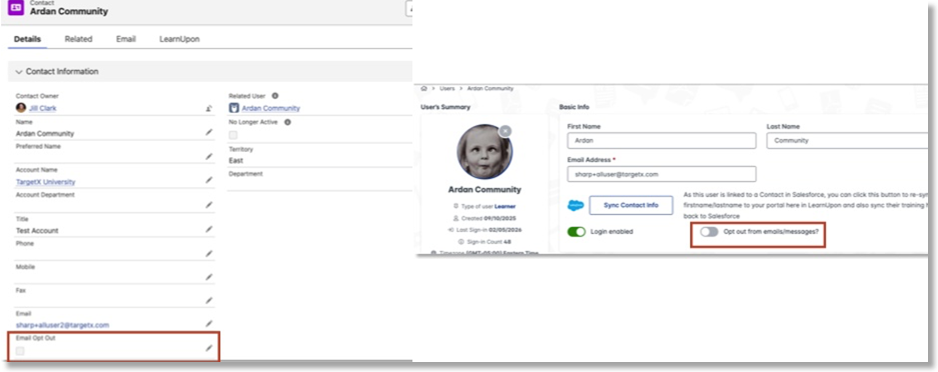
When a user requests to be opted out of emails, they should be updated on both their Contact record in Salesforce and their User record in LearnUpon:
- In Salesforce, locate the appropriate Contact record.
- On the Details tab, edit the Email Opt Out field to checked.
- In LearnUpon, click Users and select the user who should be opted out of email.
- Disable the “Opt out from emails/messages?” toggle.
Consolidating Two User Records
LearnUpon doesn’t currently offer a “merge users” feature in the UI. However, you can consolidate two user records by following a manual cleanup process.
Step 1: Decide which user record to keep
Select the account with the correct email, activity history, or the one linked to our integrations (e.g., Salesforce, SSO).
Step 2: Update enrollments and progress
For the User record you plan to delete:
Make note of enrollments along with completions and dates – you can find this on the Course History report (filter the specified User)
- Re-enroll the learner under the correct user record in the appropriate courses.
- For Completed courses:
- Manually adjust course completion dates if needed (Admins can do this through Admin → Users → [User] → Enrollments → Edit).
Step 3: Clean up group assignments
- Remove the old record from any relevant groups.
- Add the correct record to the same relevant groups.
- If using Category/Group permissions, ensure the correct record is assigned the correct User Type.
Note: for Premier courses, coordinate with the Premier team to confirm the user is enrolled in all related sessions, and, if necessary, ask how their previous payments will be applied.
Step 4: Disable or delete the duplicate account
Note: if you need to reuse an email address, refer to ‘Reusing an Email Address’ before proceeding.
Once everything is transferred:
- Go to Admin → Users → [Duplicate User Name] → Delete
(or set them to Inactive if you prefer not to delete)
Reusing an Email address
Before deleting a user whose email address you plan to reuse:
- Change their email to something different, such as deleted+email@domain.com.
- Then delete the user with the updated email.
This immediately frees the original email so you can assign it to the correct account and enrollments, while the old account (with the edited email) remains in a soft-deleted state for a 30-day grace period.
Liaison Employees
Liaison employees who were not imported must sign up manually. A dynamic rule then places them in the Liaison Employee group, and managers are assigned manually.


TargetX User (Self-Reported)
Custom User Data fields
Do you use TargetX?
- Settings = Editable, Mandatory
- Field Type = String Choice
- Recorded Values = Yes, No
- Selection Type = Single Select
Dynamic Rules
Do you use TargetX? = Yes, then add to TargetX (Self-Reported) group
Groups
Groups are collections of related learners that are managed together. They let you assign training, automate enrollments, and run Reports for many users at once instead of handling each learner individually.
TargetX Accounts
TargetX Accounts in Salesforce are Groups in LearnUpon.
After adding a new account in Salesforce, it needs to be added to LearnUpon as a “Group” (i.e., SF Account = LearnUpon Group).
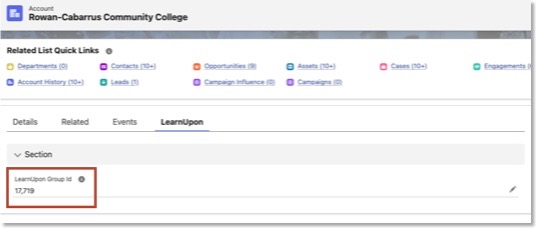
- After you create the Account in Salesforce, submit a request to add a new Group in Liaison Academy; E&K will add the Group in LearnUpon and the Group ID in Salesforce. The Group ID must be added in Salesforce for users to sync correctly:
- Confirm the account is created before adding users to Salesforce.
- Once the Account has been added as a Group, new users for that Account will automatically be assigned that Group when they are created in LearnUpon.
Institution Group Manager group
The Institution Group Manager group automatically assigns courses to Institution Group Managers and provides them with access to documentation on managing their users.
Resources
LearnUpon status
Shows the real-time health of LearnUpon, including whether systems are up, degraded, or down, as well as any incidents or scheduled maintenance.
LearnUpon Portal Action Tracker
Tracks the progress of actions like group enrollment or dynamic rule creation on your portal, in the last 30 days. You can see if they are scheduled, in progress, completed, or failed.