
Navigating the Dashboard
Overview
After logging in to your CSU Transfer Planner account, you land on the Dashboard, which includes an overview of your students, their statuses, and access to CSU Transfer Planner's various tools. All reports on the Dashboard are interactive, so you can quickly filter your students by clicking on the data within each report.
Navigating the Dashboard
There are four main areas of the Dashboard:

- Navigation Menu: access the available features in CSU Transfer Planner. You can expand and collapse the Navigation Menu by clicking the top icon.
- Dashboard: quickly view charts about your student pool.
- Pencil icon: add, edit, and rearrange the charts on your Dashboard.
- Settings Menu, Help Menu, and My Account Menu: manage users and Roles, access the Configuration Portal (University Portal users only), access the CSU Transfer Planner Help Center, and update your account profile.
Default Dashboard Reports
A few reports are automatically available to you; review the definitions below to better understand the reports.
| Report Name | Definition |
|---|---|
| A2/B4 Complete | Indicates how many students have completed their A2 and B4 requirements |
| Golden 4 Complete | Indicates how many students have completed the Golden 4 requirements |
| Total Transferable Units | For students who have entered in progress, planned, and completed transferable units in the Student Portal, it shows their total transferable units within 5-unit ranges |
| Transferable GPA | Shows a student's transferable GPA (calculated using in progress, planned, and completed coursework) within 1.0, 2.0, 3.0, and 4.0 ranges |
| TSP Eligibility |
Indicates if a student is eligible for Transfer Success Pathway (TSP). Note that students listed as "no data" have not completed the TSP questionnaire, which determines their eligibility. The TSP questionnaire is only available during the TSP enrollment period (August 1 – November 30) |
| TSP California State University | Specific to Transfer Success Pathway (TSP) students, it includes their intended transfer date and the California State University listed in their TSP agreement. |
Customizing the Dashboard
If your permissions allow for it, you can adjust what appears on your Dashboard. To do this:
- Navigate to your Dashboard and click the Edit pencil.

- From here, you can add new charts or adjust any of the existing charts that appear on your dashboard. If you create a new chart using this method, the chart will be deleted if you revert your changes (see step 5). Changes you can make to existing charts include:
- Adjusting the data that is displayed in a chart by clicking the drop-down menus.

- Adjusting the style of the chart by clicking the appropriate chart icon.
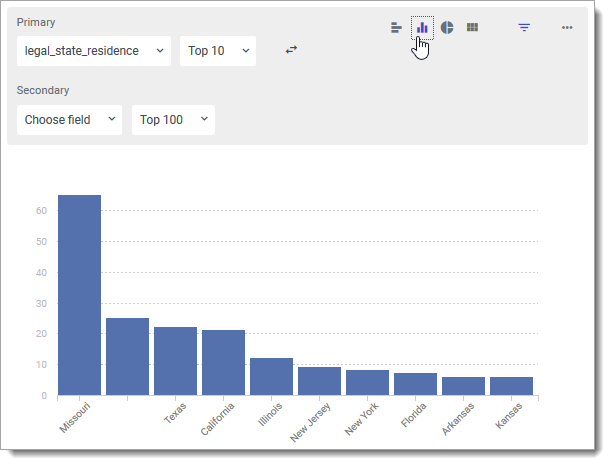
- Adding new filters by clicking the filter icon, then the Add Filter link.

- Deleting or duplicating charts by clicking the More Options button and selecting the appropriate option.

- Adjusting the data that is displayed in a chart by clicking the drop-down menus.
- To reorder how the charts appear on your dashboard:
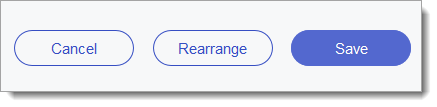
- Click Rearrange.
- Click the top left corner of any chart or group to rearrange it.
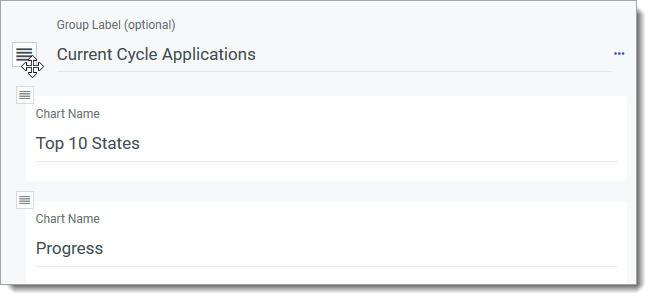
- When you're done adjusting the arrangement, click Done Rearranging.

- Click Rearrange.
- To cancel the edits you've made, click Cancel. To keep them, click Save.
- After saving adjustments, you can undo them by clicking Revert. This deletes any changes or new charts you created through the Dashboard edit.

If you personalize your Dashboard, it becomes your own customized version of the Dashboard.