
Personalizing Dashboards
The Dashboard is a highly configurable page that enables you and your team to visualize your institution’s key metrics and goal progress with charts, graphs, and tables. Several standard dashboard templates are enabled by default. These charts are intended to provide a high-level overview of where your institution’s efforts toward enrollment or retention goals currently stand, as well as trends compared with prior years. Custom dashboards allow you to tailor the variables, charts, graphs, and tables to meet specific needs.
Creating a Dashboard from a Template
- Navigate to the Monitor tab in the navigation menu.
- Select a product from the drop-down in the product menu.
- Click the plus icon in the product menu and click Select a Template.

- Choose a dashboard template.
- Click Continue.
- View the new dashboard by clicking the chevron.
Creating a Custom Dashboard
- Navigate to the Monitor tab in the navigation menu.
- Select a product from the drop-down menu.
- Click the plus icon in the top right corner and click Start From Scratch.
- Enter the dashboard name and description. Select what groups to share the dashboard with, add any relevant dashboard tags, and select a Snapshot Schedule. This will generate an automated dashboard report email. You’ll receive an email with a link to view it in the Signal tab in the Insights section. Choose one of the following report frequencies:
- None: an automated dashboard report will not be run or sent.
- Weekly: an automated dashboard report will be run and sent every Monday at 12 PM ET.
- Monthly: an automated dashboard report will be run and sent on the first day of each month at 12 PM ET.
- On Change: an automated dashboard report will be run and sent each time new or updated data is received for predictions.
- Click Continue.
- Once the new dashboard is populated in the list widget, click the more options menu (three dots) and click Edit.
- Add filters to include data and content to organize visualizations.
- Click the chevron associated with a variable to include only specific values or add a condition.
- Add multiple charts and tables as content and rearrange them by dragging and dropping.
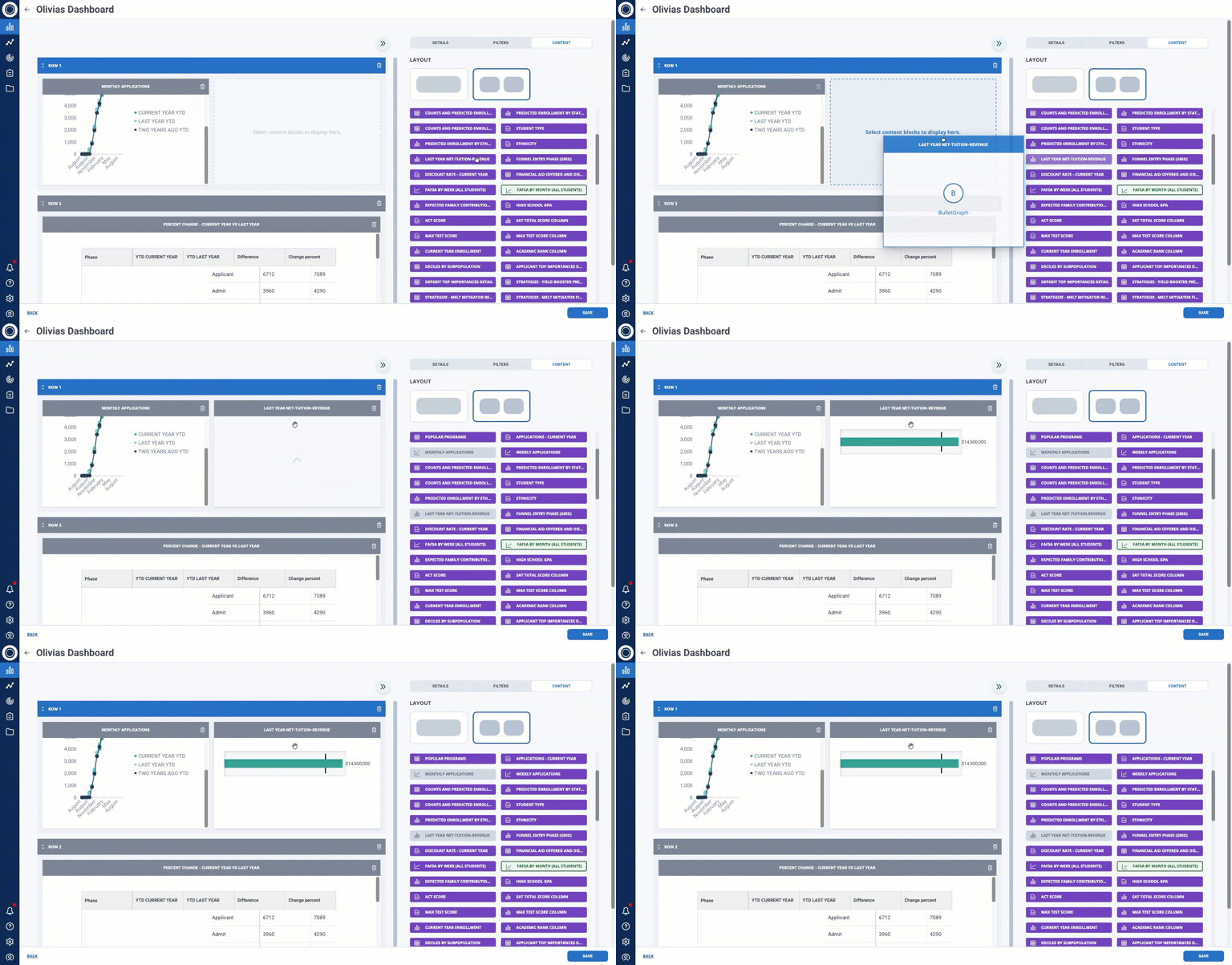
- Click Save.
- View the new dashboard by clicking the chevron.
Duplicating a Dashboard
- Click the More Options menu and click Clone.
- Rename the dashboard.
- Click Continue.
Sharing a Dashboard
You can share a dashboard with different users by editing which user groups it is shared with.
- Click the more options menu and click Edit.
- Select a group from the Share with Group drop-down.
- Click Continue.
You can also download a dashboard to use in an email or presentation.
- Open the dashboard using the chevron.
- Click the more options menu in the top right corner.
- Select Export from the drop-down.
- Click the printer icon and export as a PDF.
Exporting a Dashboard Table Widget
When viewing a dashboard with a table widget, click the download icon in the top right corner to export the table to a .csv file.