
Managing Your Account
Overview
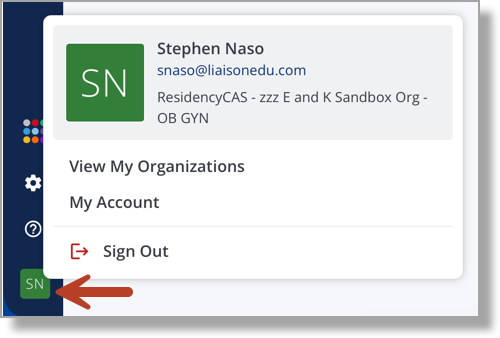
From the Account icon (your initials), you can switch between programs and manage your account.
View My Organization
Switch Between Programs
Click View My Organizations to see every program you can access and switch between them.
My Account
Change Your Account Information and Notification Setting
Click My Account to view and update your general account information. From this page, you can also enable or disable the daily assignment summary notification. By default, you’ll receive a daily email that alerts you to review assignments, even if there are no new assignments that day.

Change Your Login Email or Password
From the top-right area of the My Account page, use the My Login section to change your email address or password, then follow the prompts to complete your updates.
Enable Two-Factor Authentication
Two-factor authentication (2FA) is an additional security method that protects and helps prevent unauthorized access to your account. You can set up 2FA using any standard 2FA app (e.g., Google Authenticator, Microsoft Authenticator, Authy, etc.).
- From the top-right area of the My Account page, click Enable two-factor authentication.
- Follow the steps to complete setup.
- Once enabled, you'll be prompted for 2FA each time you log in.