
Work Groups Guide
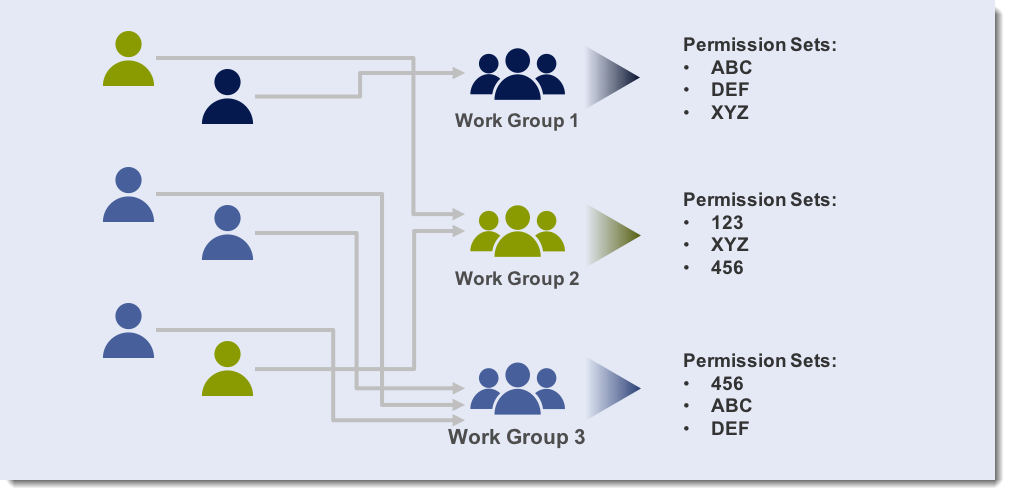
Why use Work Groups?
What's impacted when I limit a user's access through Work Groups?
If you restrict access to a permission set, then a user cannot access a feature's management tool and/or perform updates on an application.
If you restrict access to a panel or subpanel, then the user cannot access the information anywhere in WebAdMIT for AMCAS, including these pages and tools:
- Applicant Details page
- Applicant Header
- Scoring
- Full application PDF
- Email templates
- List Manager
- Export Manager
- PDF Manager (for PDFs under the Documents and Evaluation panels)
Example Work Groups
You can customize permissions and Work Groups to fit your needs. The examples below show how you might configure a Work Group and how the resulting applicant pages would appear to its members.
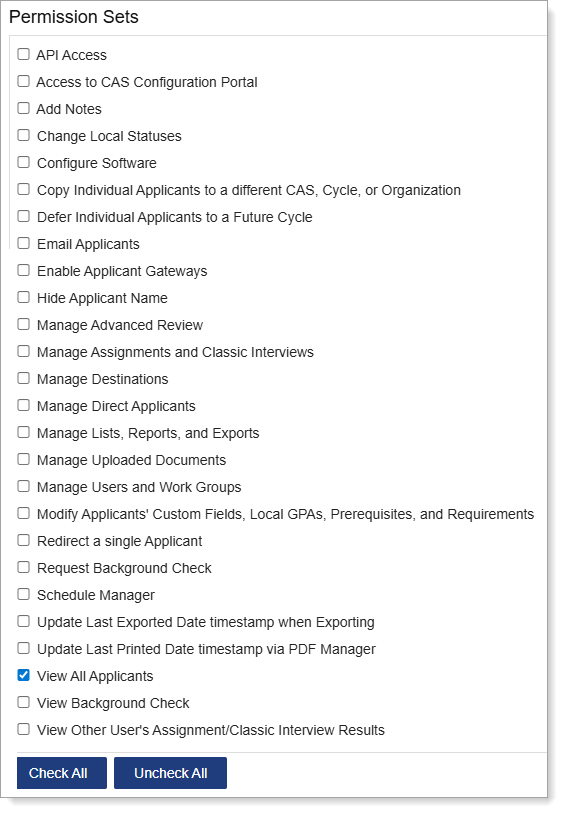
Example 1: Faculty Reviewers/Interviewers
Purpose
For users who will be reviewing applicants and/or conducting Interviews. In this example, they don’t need any administrative functionality through permission sets and only need access to select panels (e.g., Assignments, Education, Evaluations, Experiences, etc.).
Permissions Selected
Panels Selected

Resulting Applicant Details Page

Resulting Full Application PDF

Example 2: Faculty Reviewers/Interviewers without Race/Ethnicity Data
Purpose
For users who will be reviewing applicants and/or conducting Interviews and should not view applicant race or ethnicity data due to program, university, state, or federal mandates. In this example, they don’t need any administrative functionality through permission sets and only need access to select panels (e.g., Assignments, Education, Evaluations, Experiences, etc.).
Permissions Selected
Panels Selected
*Note that the Personal Information Race and Ethnicity subpanel is not selected. For some CASs, race and ethnicity data may be collected in a CAS Custom Question. If that is the case, then do not select the corresponding panel/subpanel under CAS Custom Questions. Contact a member of your account team to learn how your CAS collects this data.

Resulting Applicant Details Page (note that the Race and Ethnicity subpanel does not appear under the Personal Information panel)

Resulting Full Application PDF (note that the Race/Ethnicity section does not appear under the Birth Information section)

Example 3: Faculty Reviewers Using a Blind Review Process
Purpose
For users who will be reviewing applicants via a blind review process. In this example, they don’t need any administrative functionality through permission sets and only need access to select panels (e.g., Assignments, Education, Evaluations, Experiences, etc.).
Permissions Selected
Note that the Hide Applicant Names permission does not hide the applicant's name in the full application PDF, reports, or the applicant's email address, where their full name may be listed. You may want to remove access to these sections when conducting blind reviews.

Panels Selected
Resulting Applicant Details Page

Resulting Full Application PDF
The Hide Applicant Names permission does not hide the applicant's name in the full application PDF. You may want to remove access to this feature when conducting blind reviews.
Example 4: IT Staff
Purpose
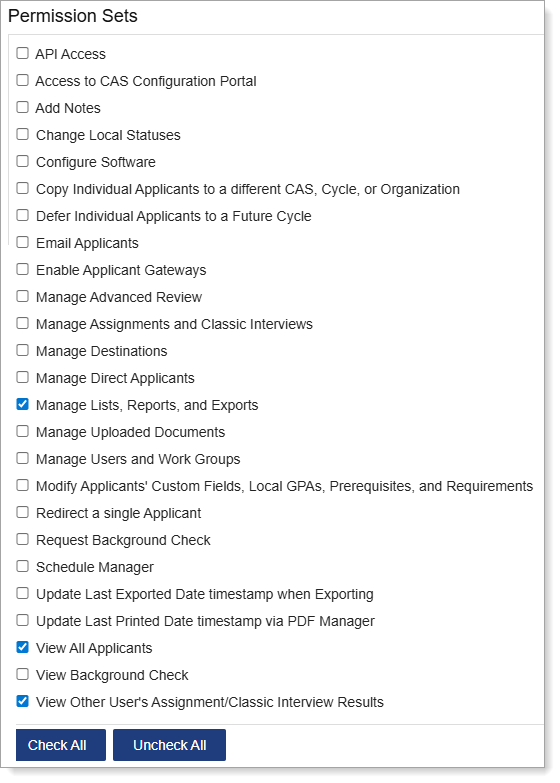
For users who will be working with applicant lists and configuring exports. They only need access to the data that will be exported.
Permissions Selected
Panels Selected

Resulting Applicant Details Page
