
Working with Marketing Analytics
Use marketing analytics to review campaign and track performance in Outcomes. Delivery and engagement metrics show how recipients interact with your messages, while conversion results help you evaluate whether recipients take the next steps you want, such as starting an application or registering for an event.
Campaign Analytics
To review analytics related to your campaigns, go to Campaign Builder in the Marketing menu. Click the More Options icon on the right and select Analytics.

From the Campaign Analytics page, review the statistics related to your campaign.

- Summary: presents the name of your campaign and how many emails, texts, and voice messages were sent related to the campaign. Also displays the number of conversions and the coversion rate. Click the conversion total to review the segment of contacts who are counted as conversions.
- Email statistics: presents all the data related to the emails in your campaign.
- Items: the number of different emails you worked with related to this campaign.
- Total Sent: the total number of emails sent in relation to this campaign.
- Total Opened: of the emails you sent, this is the total number that were opened by the recipients.
- Open Rate: the percentage of emails that were opened by the recipients.
- Link Clicks: the total number of times a link within your email was clicked by the recipients.
- Unique Link Clicks: the number of individual recipients who clicked one of your links.
- Emails with Link Clicks: the number of emails you sent containing a link that a recipient clicked.
- Click-Through Rate: among the opened emails, the percentage of recipients who clicked one of your links.
- Number of Opt-Outs: the number of recipients who opted-out of receiving future emails.
- Text statistics: presents the number of different text messages you worked with related to this campaign, and the total number of texts sent.
- Voice message statistics: presents the number of different voice messages you worked with related to this campaign, and the total number of voice messages sent.
From the Campaign Analytics page, you can also review several charts related to the performance of your emails.
Track Analytics
You can also review the analytics related to an individual track in your campaign. To do this, select one of your campaigns from the Marketing page. On the Edit Campaign page, the Campaign Tracks section displays a list of the tracks related to this campaign.
From the Edit Campaign page, you can manage your tracks:
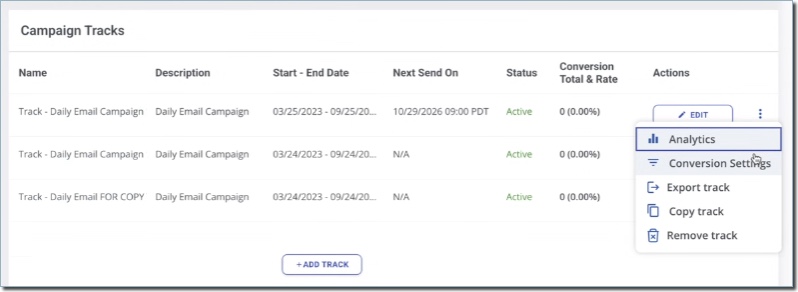
- Click Analytics to view the analytics of this track, including a summary, message totals, and email performance information.
- Click Conversion Settings to define which actions count as conversions and how long after the track ends those actions can qualify. Conversion actions can be configured only for active tracks with an end date of today or later. See Setting Up Conversions for more details.
- Click Export track to create a CSV file with a point-in-time view of the campaign's current analytics, including campaign and track data.
- Click Copy track to start a new track by copying this track.
- Click Remove track to delete this track completely.
To review the analytics related to one of the tracks, click the analytics icon. The Track Analytics page presents you with the same options available in Campaign Analytics, but isolated to this track. To learn about conversion actions and the conversion window, see Configuring Track Conversions.

Reviewing Conversion Results
A conversion represents a desired action a recipient takes after receiving outreach from a campaign track, such as starting an application, registering for an event, or making a payment.
If conversions are configured for a track, you'll see a conversion total and conversion rate for tracks and for the overall campaign. Review these results alongside delivery and engagement metrics to understand whether your outreach is associated with the outcomes you want.
Understanding Your Results
Each track’s conversion results depend on its settings, including:
- Conversion actions: the actions selected to represent success.
- Action conditions: the specific criteria recipients must meet, such as registering for a selected event series or reaching a selected funnel stage.
- Action logic: whether recipients must meet all selected action criteria or at least one.
- Conversion window: how long after the track ends an action can still count.
To qualify, a recipient must have been sent an item from the track and meet the conversion criteria within the allowed timeframe. Note that conversion tracking is not retroactive. Only qualifying actions that occur after the conversion is configured will count toward your results.
How Conversions Are Counted
Conversion results count qualifying recipients rather than repeated occurrences of an action.
- Within a track: if a recipient completes the same qualifying conversion action multiple times, repeating the action does not add more conversions.
- Across a campaign: if a recipient converts in multiple tracks, they are counted once in the campaign’s conversion total. The campaign conversion rate also counts that recipient once, rather than counting them separately for each track.
So, if the same recipient converts in two tracks, they can appear in both tracks’ conversion results but contribute only one converted recipient to the campaign’s results.
Because campaign results count recipients uniquely across tracks, the campaign conversion total may be lower than the sum of the individual track totals.
Evaluating Track Performance
Consider what each track is intended to accomplish when reviewing its results. For example, an event promotion track may measure registrations, while a drive-to-apply track may measure application starts.
Review delivery, engagement, and conversions together. Note the following:
- Message opens and clicks show engagement with your outreach, but conversions show whether recipients completed the next steps you selected.
- Before comparing conversion results across tracks, review their actions, conditions, and conversion windows. Tracks that measure different results are not directly comparable.
To set up or change the criteria, see Configuring Track Conversions. Conversion actions can be configured only for active tracks with an end date of today or later.
Exporting Campaign Analytics
You can export campaign statistics to a CSV file to share results or analyze performance outside Outcomes. To do so:
- Open the campaign.
- Open the campaign’s 3-dots menu and click Export.
- Download the file when it is ready.
The export includes campaign, track, and item information, along with delivery, engagement, and conversion data. It reflects the campaign statistics available at the time of export.