Duplicate Student Records
Overview
Since there are multiple ways to create a student record, duplicates may arise due to discrepancies in the information added to EMP. For example, a student who fills out the inquiry form as Mike Jones might be imported as Michael Jones, resulting in a duplicate student record. Duplicate Records can easily be identified and merged using the deduplication process. Deduplicating records frequently keeps your data integrity intact.
Managing Duplicate Records
Deduplication Process
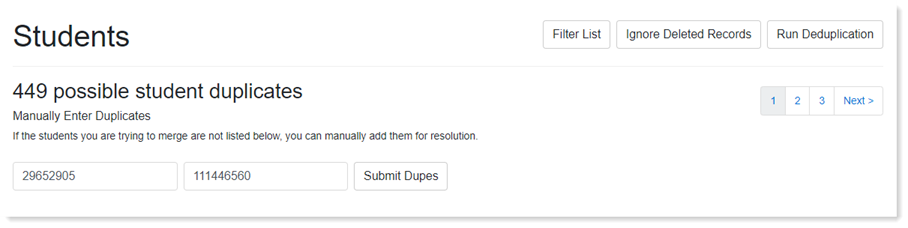
To find duplicate records within EMP, click Students from the top navigation bar and select Duplicates from the drop-down. Click Run Deduplication to display all possible duplicate student records. Once the deduplication process finishes, you can either ignore or resolve any records identified.
- Click the Ignore option if the set of duplicate records should remain as separate student records.
- Click the Resolve option to merge the duplicate records together. After clicking Resolve, a new screen appears with the values of both records. Choose the values you want to keep on the student record. As a best practice, select values for the PURL with the most interaction points. These values will replace one another. Student-related information such as email statistics, event registration, and interactions will be combined into the one record. When you have selected the values you want to keep, click Merge Records.
Manual Deduplication Process
As you work in EMP, you may come across duplicate records in groups, email lists, etc. As you find duplicates, you can manually resolve them by navigating to the Duplicates page.
- Add the Spectrum ID from duplicate 1 and the Spectrum ID from duplicate 2 in the prompts.
- Click Submit Dupes. The duplicate pair will appear at the top of the page.
- Click Resolve and merge the duplicate records together.