
Configuration Portal Guide
Overview
In the FellowshipsCAS application, applicants can view your program’s branding image and description. You can view and customize these in your program's Branding of the Configuration Portal. Configuring your program’s information ensures that applicants see accurate information when they search for and apply to your program.

Accessing the Configuration Portal
- From FellowshipsCAS, click the portal switcher and click Config Portal.

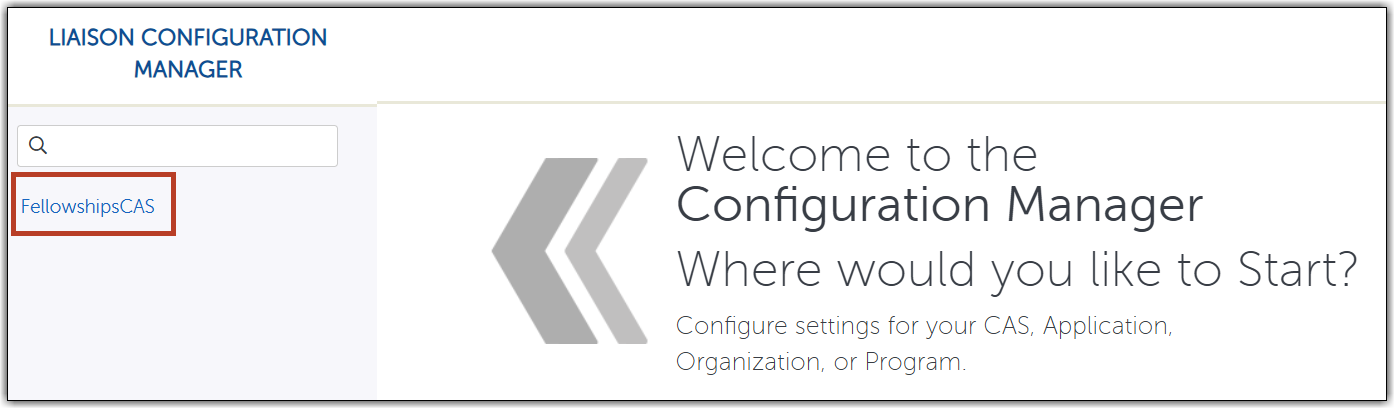
- The Configuration Manager launches in a new window. Select FellowshipsCAS on the left.
- Select the current application cycle.
- Select your fellowship.
Granting Users Access to the Configuration Portal
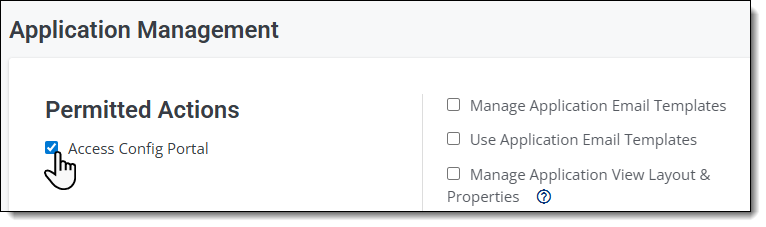
Access to the Configuration Portal is controlled by a role permission. By default, fellowship directors, managers, and coordinators have this permission, while users in other roles must have it enabled to gain access.
Configuration Options by Specialty
The Specialty Configuration Grid provides an at-a-glance view of the configuration requirements available for each specialty in FellowshipsCAS. A checkmark indicates that the specialty is permitted to edit that specific functionality, while a blank field indicates that editing is not allowed.
| Specialty | Program Image | Program Description | Program LORs | Program Questions | Program Documents |
Program Display Deadline (Priority Deadline) |
Program Default Deadline (Close Date) |
|---|---|---|---|---|---|---|---|
| Breast Imaging | ü | ü | ü | ü | ü | ||
| Complex Benign Gynecology | ü | ü | |||||
| Dermatopathology | ü | ü | ü | ü | |||
| Molecular Genetic Pathology | ü | ü | ü |
ü | ü | ü | |
| Pediatric and Adolescent Gynecology |
ü | ü |
Configuring Your Program
Complete the following steps to customize the branding, deadlines, questions, and documents applicants see on the FellowshipsCAS application.
Step 1: Editing Program Information and Branding
Editing Program Details
- Hover your mouse over the program and click Details to view the Program Details page. If you are already editing a program, you can return to the Program Details page by clicking the Program Details link at the top.

- Click Edit at the bottom of the page. Make changes, as needed.
- Update your program's application deadline (if permitted by your specialty association), including the default deadline and displayed deadline (same as the default or a separate priority deadline).
- If your program participates in The Match, update your Match type and NRMP Institution Code.

- Click Save to save any changes.
Editing Program Images and Description
Your branding image appears on the top of your home page. We recommend using an image that is consistent with your program’s branding. In the description, you can include details such as program requirements, hyperlinks, curriculum highlights, training opportunities, Match information, and other essential information about your program. This is the only section where applicants will see your branding and description, so make it count!
Refer to the Branding Your Program Page for additional guidance on adding an image and description.
If you encounter trouble uploading an image or editing your program description, contact us for assistance.
Step 2: Configuring Program Recommendations, Questions & Documents
Editing Program Recommendations
- In the Editor, click Recommendations.
- Enter Applicant Instructions in the text box.
- If permitted by your specialty association, adjust the Minimum Required and Maximum Accepted number of each letter of recommendation requirement.
- Click Save.

Editing Program Questions
Configuring Questions
- In the Editor, click Questions.
- Add Applicant Instructions.
- Then, add your Question Set.
- Click Add Question.
- Save your changes.
- Confirm the questions appear in your list as expected.
Configuring Question Rules
Question Rules create conditional logic between questions. For example:
- If an applicant answers "Yes" to "Have you completed any other fellowships?", a follow-up question can appear requesting additional details.
- If an applicant answers "No", the follow-up question remains hidden.
To access configuration rules for questions:
- In the Editor, click Configure Question Rules below your question list.
-
Select the question that will serve as the trigger.
-
Define the response that will activate the rule.
-
Select the question(s) that should be displayed when the condition is met.
-
Save your changes.
Editing Program Documents
Program Documents allow you to collect and manage documents that applicants may be required to submit as part of their application. To configure documents:
- In the Editor, click Documents.
- Enter the Document Name, using a clear, applicant-facing title.
- Example: Research Statement, Program-Specific Form, or Supplemental Application Form.
- Provide a Document Description, including detailed instructions for applicants, if applicable.
- Example: “Please upload a one-page statement describing your research interests and career goals.”
- Configure Document Settings.
- Required: Applicants must upload the document before submitting their application.
- Optional: Applicants may upload the document, but are not required to do so.
- Save and Publish.
- Review all document details and settings.
- Save your changes.
- Confirm the document appears in the Program Documents list.
Additional details about program documents can be found in the Configuring Documents article.
Step 3: Submitting for Review and Approval
Submitting your program for review is the final step in the FellowshipsCAS configuration process and is required before your program can be made available to applicants in production for the upcoming application cycle.
After you have completed all configuration activities, including reviewing your Program Details, Questions, Question Rules, Recommendations, and Program Documents, you must submit your program through the Configuration Portal prelaunch environment for review by the FellowshipsCAS team.
Submission Deadline
All program configurations must be submitted for review by September 1, 2026.
Review Process
Submission
To submit your configurations for review:
- Review all items to ensure the information is accurate and applicant-ready.
- From Program Details, click Submit.
- Then, click Submit for Review to submit your program for review and approval.

Once submitted, the FellowshipsCAS team reviews your program configuration to ensure the required information is complete and that configuration settings align with specialty requirements and FellowshipsCAS standards.
No news is good news! If you do not hear from the FellowshipsCAS team before October 1, your program is ready for Go-Live. You can view your approval status on the Program Details page at any time.

If issues or errors are identified during the review process, you'll receive an email notification outlining the required updates or corrections. You can access the Configuration Portal to make the requested changes and resubmit for approval as soon as possible.
Approval and Go-Live
Your program does not appear to applicants or become available within FellowshipsCAS until it has received approval from the FellowshipsCAS team. Submitting early allows ample time to address any requested revisions before the application cycle launches.