
Identifying New and Updated Applicants
Overview
In this guide, you can learn tips and tricks on how to quickly identify newly submitted applicants to your program, as well as applicants who have updated their applications since applying. By implementing some of these ideas, you can quickly sift through your applications and re-prioritize reviewing the applicants themselves.
Unsure where to start? Consider these scenarios:
| Scenario | Next Steps |
|---|---|
| Aimee Applicant just called your admissions department, letting you know she submitted her application. | Find Aimee's application on the Dashboard, or create a list to find recently submitted applications. See Identifying New Applicants for ideas. |
| Mo Director doesn't know where to start his admissions review process. | Mo can start by grouping new applicants together. See Identifying New Applicants for ideas. |
| Ashton Applicant notified you that he heard from his recommender that his final recommendation has been submitted. | Find Ashton's recently received recommendation in the List Manager. See Identifying Recently Updated Applicants for ideas. |
| Tanya IT needs data resent to the student information system (SIS) when applicants update their applications. | Tanya can work with the admissions department to identify the major application changes that will trigger a new data import. See Identifying Recently Updated Applicants for ideas. |
We include many of WebAdMIT's tools and processes in this guide; if you have any questions on how to use them, contact the Client Support Specialist Team.
Identifying New Applicants
WebAdMIT offers several tools to quickly identify newly submitted applicants, including the Dashboard and List Manager.
Dashboard: Recently Submitted Designations
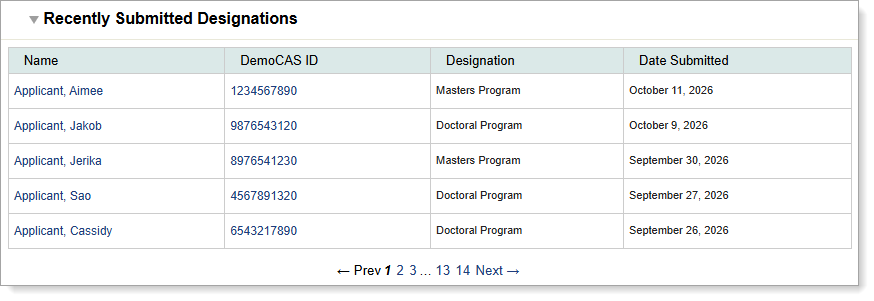
WebAdMIT's Dashboard features a Recently Submitted Designations panel to help you identify new applicants. The applicants are listed in reverse chronological order with the most recent applicant appearing first. You can use the pagination at the bottom to move through the table.
Dashboard: Designations by Local Status
WebAdMIT's Dashboard also includes a Designations by Local Status panel, where you can customize your application review workflow and move applicants through it. Newly submitted applicants typically appear in the None Local Status once they submit their application to you.

Note the following behaviors for In Progress applicants, and how they affect this panel and Local Statuses:
- If your CAS provides you with a full view of In Progress applicants (i.e., you can view all applicant data before the applicant submits their application), these applicants appear in the None Local Status as soon as they add your program to their application.
- If your CAS allows partial view of In Progress applicants (i.e., you can view some applicant data before the applicant submits), these applicants appear in the None Local Status as soon as they submit their application.
- You have the option to place In Progress applicants in Local Statuses; for example, you can create In Progress-specific Local Statuses to keep track of In Progress applicant outreach initiatives. If you decide to move In Progress applicants into other Local Statuses, they remain in these Local Statuses when they submit their application (i.e., they will not return to the None Local Status). Ensure you have a process in place to keep track of when these applicants submit their applications.
List Manager: Filter for New Applicants
You can use the List Manager to find recently submitted applicants. When creating a List, use the Designation field grouping to search by the date the applicant submitted their application (Designation Submitted Date), the date the application moved to the Complete status (Designation Complete Date), etc. Review the Date Field Reference Guide to help identify the most appropriate fields for your purposes. Additionally, review the CAS Application Statuses Reference Guide for more information on application statuses.

Example Admissions Workflows for New Applicants
Once you identify newly submitted applicants, you can take your next step with them. This may include:
- Sending them a "we received your application" email.
- Fulfilling requirements to see if their application is considered complete by your program.
- Moving them to a Ready for Review Local Status.
- Assigning them to a reviewer.
- Exporting them to your CRM or student information system (SIS).
Note that you may be able to run some of these processes using WebAdMIT's Automations feature.
Below we'll go over some example workflows that you can implement. We encourage you to adapt these to meet your needs and processes.
Example 1: Identify applicants who have submitted their application in the past seven days and move them into an "Application Review Needed" Local Status.
In this example, you gather newly submitted applicants and place them in a Local Status, where you can then start checking if they have submitted all the necessary application materials.
- Create an Application Review Needed Local Status.

- Use the List Manager to create a list to find applicants who have applied within the past seven days.

- Run the list, and then under List Actions, click Changed Checked Applicant's Status and then place them into the Application Review Needed Local Status.

- You can then use the Requirements feature to see if they have fulfilled your program's completion requirements.
Example 2: Find newly verified applicants, send them a welcome email, and move them into a "Ready for Review" Local Status.
In this example, you choose to wait to start reviewing applications until they're in the Verified application status. Once they're in this status, you then send a "we got your application" email and place them in a Ready for Review Local Status.
- Create a "we got your application" email template.

- Create a Ready for Review Local Status and attach it to your email template. This simplifies your process because when you place the applicant in this Local Status, you'll automatically be reminded to send the attached email template.

- Use the List Manager to build a Newly Verified Applicants list that searches for applicants in the Verified application status who have not yet been placed into a Local Status (i.e., the current Local Status is null/None).
- Remember: if you're placing In Progress applicants in Local Statuses, you'll need to update your list's parameters, as your applicants will not return to the None Local Status when they submit their applications.
- The benefit of using this list structure is that as you move applicants into a Local Status, they no longer meet the Local Status is null criteria. Therefore, this list will only pull the applicants you have not worked with yet (as long as you don't use Local Statuses with applicants before the Verified application status).

- Run the list, and then under List Actions, click Changed Checked Applicant's Status and then place them into the Ready for Review Local Status.
- Because you tied the email template to the Local Status, you'll automatically get a reminder to send the "we got your application" email template.
- Conversely, if you didn't tie your Local Status to an email template, you can first click Email Checked Applicants to send the desired email template, then click Changed Checked Applicant's Status to move them into your Local Status.
- Once you move your applicants into the Local Status, they will automatically be cleared from your Newly Verified Applicants list, as they no longer meet the Local Status is null criterion. As more applicants arrive in your applicant pool, the list repopulates with applicants who meet the established criteria.
- For your applicants in the Ready for Review Local Status, you can start assigning them to your reviewers.
Identifying Recently Updated Applicants
After applicants apply to your program, they can go back into their applications and make edits, such as adding more experiences and standardized test scores, updating their mailing addresses, or submitting optional documents.
- Review the CAS Application Locking Behavior guide for more information on which parts of the application can be edited after submission.
- Review the How Applicant Data Updates in WebAdMIT article to understand the key triggers and processes that cause an applicant's full application data to be transferred from the CAS Applicant Portal into WebAdMIT.
- Additionally, each CAS sets requirements for submitting and completing the application. Review the CAS Application Statuses Reference Guide and your CAS's Program User Guide to determine which, if any, additional materials are required. Be aware that the following application materials can be received by the CAS after an applicant submits their application to your program:
- Transcripts
- Letters of evaluation (i.e., recommendations, references)
- Foreign coursework evaluations
- Official test scores
WebAdMIT offers several tools to quickly identify newly updated applicants, including the Dashboard and List Manager.
Dashboard: Recently Updated Applicants
WebAdMIT's Dashboard features a Recently Updated Applicants panel to help you identify applicants who have updated their application after submitting. This panel includes a Section Updated column that identifies the associated update (e.g., Current Mailing Address). When an applicant first submits their application, they appear in this panel with all application sections listed under the Section Updated column.
If you have full viewing rights for In Progress applicants, your In Progress applicants will be listed in this panel as well.

Dashboard: Designations by Academic Update
If your CAS participates in Academic Update, where applicants can update their in progress/planned coursework with grades, submit updated transcripts, and have their CAS GPAs recalculated, then you'll have a Designations by Academic Update panel on the Dashboard.

List Manager: Filter for Updated Applicants
You can use the List Manager to search for application updates that are most important to your admissions process. We highlight the most common application updates below. Most of these fields are date-based; be sure to review the list operator options to effectively filter applicants before or after a certain date or within a time frame.
Application Last Changed On
The Application Last Changed On field is the last date that an applicant's information was sent from the CAS to WebAdMIT. This transmission occurs when:
- An applicant updates information in their application and clicks the Update My Application button.
- A document, such as a transcript or evaluation, or an official test score has been received by the CAS team.
- An applicant's information needed to be resent to ensure accuracy between the application and WebAdMIT (this is rare).
This is a generic field that includes all updates to any section of the application. This field is listed under the Applicant field grouping.

Letters of Recommendation Received
From the List Manager, you can search for letters of recommendation (i.e., evaluation, reference) updates in the:
- Number of Evaluations Received field under the Applicant field grouping. This field is only available for CASs that collect letters of recommendation in the Supporting Information section (i.e., recommendations that are shared with every program the applicant applies to).
- Reference Received Date field under the Evaluators field grouping.
- Note that some CASs allow recommenders to upload new recommendations. If they do, the Reference Received Date in the List Manager and Applicant Details Page will display the most recent submission date. Contact a member of your account team to learn if your CAS allows this.
Before building lists with these fields, first check if your CAS requires applicants to have a certain number of recommendations received (or if your program sets this requirement in the CAS Configuration Portal) before moving into the Complete application status. If they do, then you can use the Designation Complete Date field under the Designation field grouping instead. This helps you work more efficiently, as you use broad CAS requirements rather than individual material requirements.
Example 1: You require 3 completed recommendations.
If you require a certain number of recommendations to be completed before reviewing an applicant, you can use the Number of Evaluations Received field to search based on this number.

Example 2: You need recommendations received on or before October 1.
You can use the Reference Received Date to find evaluations submitted before or after a certain date or within a time frame.

Transcript Received
You can use the Transcript Received Date field under the Transcripts field grouping to filter by the date when:
- An official transcript was received by the CAS.
- A foreign evaluation was received by the CAS.
- An applicant uploaded an unofficial transcript.
Sometimes a CAS may post a newer copy of a transcript because of a school's request (e.g., updated transcript information), applicant request (this is rare), or the Academic Update process. If this happens, the Transcript Received Date in the List Manager and Applicant Details Page will display the most recent upload/submission date.
Before building lists with this field, first check if your CAS requires applicants to submit official or unofficial transcripts (or if your program sets this requirement in the CAS Configuration Portal) before moving into the Complete application status. If they do, then you can use the Designation Complete Date field under the Designation field grouping instead. This helps you work more efficiently, as you use broad CAS requirements rather than individual material requirements.

Official Test Score Received and Last Updated Date
If your program accepts official test scores through the CAS (e.g., GRE, MCAT, or TOEFL), then you can use the List Manager to search by the:
- Test Score Official Received Date field under the Official Test Score field grouping.
- Test Score Official Last Updated Date field under the Official Test Score field grouping.
Each field and grouping name has a unique name based on the test type, though all contain Official in both the field and grouping names.
In most cases, these fields will have the same date, but sometimes there is a difference. To understand why, consider this scenario:
- Aimee Applicant sent her official GRE scores to DemoCAS on March 1, 2026. However, her name on her official GRE scores was misspelled, and her scores didn't automatically match to her application. She called customer service on April 1, 2026 to have them manually match her scores. They did so, and her scores were then sent to WebAdMIT.
- In this scenario, Aimee's Test Score Official Received Date is March 1, 2026 (when the CAS received the official test score).
- However, Aimee's Test Score Official Last Updated Date is April 1, 2026 (when she contacted customer service to have her scores manually matched to her application).
- This situation can happen when an applicant's name or date of birth does not match between their CAS application and the official test score report.
Be aware that most CASs do not require official test scores to be received before an applicant moves into the Complete or Verified application statuses. If this is a requirement for your program, you can use Local Statuses and Requirements to record and manage this data.

Example Admissions Workflows for Updated Applicants
Once you identify your recently updated applicants, you can take your next step with them. This may include:
- Confirming they have submitted your program's supplemental materials requirements.
- Assigning reviewers for newly completed applications.
- Exporting and sending updates to your student information system (SIS).
Below we'll go over some example workflows that you can implement. We encourage you to adapt these to meet your needs and processes.
Example 1: You require official GRE scores, but your CAS doesn't. How can you find applicants who have official GRE scores?
Many programs use the Requirements feature to manage their program's additional application requirements, and then create a Missing Materials or Missing Requirements Local Status to group those applicants who haven't submitted all the additional materials. In this example, we're starting with applicants who have already been reviewed, identified as having missing official GRE scores in the Requirements feature, and placed in this Local Status.
- Use the List Manager to build a Missing Materials Check to identify applicants who are currently in your Missing Materials Local Status and have since submitted their official GRE scores to the CAS.
- If you want to search by multiple completion requirements (e.g., official test scores received and 3 letters of recommendation received), you'll need to build both field and composite lists. Build your first field list to search for the Missing Materials Local Status. Build your second field list to search for your completion requirements (e.g., official test scores received and 3 letters of recommendation received), using the "will match any of the following rules" value. Then, build a composite list to search for applicants who appear in both of these field lists, using the "will match all of the following rules" value.

- If you want to search by multiple completion requirements (e.g., official test scores received and 3 letters of recommendation received), you'll need to build both field and composite lists. Build your first field list to search for the Missing Materials Local Status. Build your second field list to search for your completion requirements (e.g., official test scores received and 3 letters of recommendation received), using the "will match any of the following rules" value. Then, build a composite list to search for applicants who appear in both of these field lists, using the "will match all of the following rules" value.
- Run the list, and then under List Actions, use the Accept Checked Applicants Requirement Criterion to update your Requirements criterion (e.g., official test score received).

- Then, click Changed Checked Applicant's Status and then place them into your next Local Status's review stage (e.g., Ready for Review).
- Once you move your applicants into the Local Status, they will automatically be cleared from your Missing Materials Check list, as they no longer meet the Local Status equals Missing Materials criterion. As more applicants arrive in your applicant pool, the list repopulates with applicants who meet the established criteria.
- You can run this list as needed (daily, weekly, etc.) to move applicants into your review process's next steps. For your applicants in the Ready for Review Local Status, you can start assigning them to your reviewers.