
Working with Advanced Configurations in Outcomes
Liaison Outcomes becomes even more powerful when you implement customizations. Our Advanced Configuration Library provides guidance to help you build these customizations, typically by applying JavaScript. This code can be stored directly in the fields where it is needed, or in the Function Library.
To work with these customizations:
- Understand how JavaScript configurations work in Outcomes.
- Review the Use Case Directory below to find scenarios that may call for an advanced configuration.
- Review the guidance in the applicable article.
- Where needed, apply the code provided in the article, and replace the variables as needed. Use the Finding Field Keys section to help replacing variables.
Text Field Validation in Outcomes
Text fields in Outcomes offer validation to support different types of content. This means whenever you input data into a text field, Outcomes checks the data to make sure it complies with what that field type allows. There are three field types:
- Plain Text Only (no HTML or JavaScript allowed): these are standard fields, like names or single-line responses.
- HTML Allowed (no JavaScript): these fields support basic formatting such as bold, italics, and links, but block JavaScript. Ideal for instructional or informational fields where formatted text is helpful.
- JavaScript Allowed: these fields support full JavaScript expressions. Used for advanced scenarios such as calculated properties.
If the validation fails, Outcomes displays an error message and prevents you from saving the field. This ensures that each field supports its intended functionality and protects against invalid or unsafe input.
Customizing Outcomes with JavaScript
A powerful tool in Outcomes is the ability to manipulate its data using JavaScript. JavaScript is a popular programming language that allows you to build and control interactive content on a website. In the case of Outcomes, using JavaScript, you can adjust how information appears in your files, apply logic, and transform data directly within the software. Review the information below for examples of how to use JavaScript to manipulate string values, and apply conditional logic, and make other modifications.
For example, when data elements like "Name" or "Email Address" are included in a JSON, Tabular, or Document export, the values of exported properties are copied from the Outcomes database to the export file without any changes. However, if you're importing data into another system, you may need your fields to be formatted in a specific way. This is where making JavaScript customizations can be useful.
Using JavaScript in an Export
To edit an export field expression, go to the export settings page and follow these steps:
- Click the {} icon that appears when the mouse hovers over a field selected for your export.

- Add your desired string function.

- To test your new function, click Try It.
- Use the Find an applicant record field to search for an applicant to test with.

- Click on the desired applicant's name to run the test. On the right, the Output area indicates how your expression will affect the data in the impacted field.to kee
- Click Update to keep your changes.
Example Scenario
Perhaps you are working with an enterprise solution or Student Information System that cannot import any email addresses containing uppercase characters. Since Outcomes allows capital letters in email addresses, you'll need to add a function that converts all characters to lowercase.
- The default expression when adding the email address to an export might be: applicant.emailAddress
- To convert the email address to lower case, we add the JavaScript toLowerCase() function to the string, making it: applicant.emailAddress.toLowerCase()
- This converts an email address value of TestEmail@me.com to testemail@me.com in the export file

Common String Manipulation Functions
| Function | Description | Sample Expression |
|---|---|---|
| toLowerCase() | Converts all characters in the string to lower case. | applicant.email.toLowerCase() |
| toUpperCase() | Converts all characters in the string to upper case. | applicant.email.toUpperCase() |
| trim() | Removes leading and trailing white space from a string. | applicant.email.trim() |
| replace() | Searches a string for a specified value, or a regular expression, and returns a new string where the specified values are replaced. |
Replace “.com” anywhere in the string with “.edu”: app.email.replace(“.com”,”.edu”) |
| substring() |
Extracts a section of a string using character position and returns updated string. The first argument sets the starting point for the extraction and the second indicates how many characters to return. |
This expression returns the first 5 characters of a string: applicant.name.slice(0,5) |
| contains() | Searches a string for another string and returns true if found, false if not found. See the section below on Conditional Output for more information about how to return values based on logical tests. |
This expression returns true if the string ‘demouniversity.edu’ appears in the email address property: applicant.email.contains(‘demouniversity.edu’) |
The table above is just a sample of the dozens of string manipulation functions supported by JavaScript. Documentation for other useful JavaScript data manipulation functions can be found online.
Working with Conditional Output
You may wish to export data based on some sort of logic. A simple example of this is: If something is true, return one value, otherwise, return some other value. In this case, there are only two possible values, but with JavaScript you can make this conditional logic as complex as needed and involve as many of the applicant data model properties as needed.
Here are three common approaches when using JavaScript to conditionally alter the values of exported fields.
- Ternary Operator
The “ternary” operator offers a quick way to return one value if one condition is true and a different value if false. The structure of this expression is:(logical test in parenthesis) ? {value to return if true} : {value to return if false}
Here’s a sample that will return “Student or Faculty” only if the string “bu.edu” appears in an email address. Otherwise, “Non Academic” will be returned:(app.email.contains(“bu.edu”)) ? “Student or Faculty” : “Non Academic”
- If / Else Statement
An If else conditional is similar to the ternary operator in that it offers a way to return one value if a condition is true and a different value if false. Sometimes it makes the logic easier to read if broken out over multiple lines, which is supported in the property expression editor. The structure looks like this:{ if (condition) { return a value ; } else { return a different value ; } } Example using logic from above: { if (app.email.contains(“bu.edu”)) { return “Student or Faculty” ; } else { return “Non Academic”; } } You can also use this structure to check for nulls or empty values, as seen in this example: { if (applicant?.program) { return applicant.program; } else { return "No program listed"; } } - Switch (Case) Statement
The switch conditional allows an expression to return values based on multiple cases. This goes beyond true and false like if/else and the ternary operator. Here’s the structure of a switch statement using an example of returning values based on the country code:{ switch (applicant.address.countrycode) { case “US”: return “United States”; case “CA”: return “Canada”; default: return “Not US or Canada”; } }
As an alternative to switch statements, consider using translation tables for value mapping (like country codes or program names). This can be easier to maintain and doesn't require editing JavaScript.
Dealing with Null Values
In JavaScript, a Null is a special value that indicates the property has no value. For a string, this is different than an empty value in quotes. Numeric, string, and date type properties can all have null values. It is important to understand this because there are cases where unexpected results or errors can occur if a custom JavaScript expression tries to operate on a null where an actual value was expected.
For example, if the property applicant.email were null, this expression would cause an error: applicant.email.toLowerCase()
To guard against this, it’s helpful to know null values are interpreted as “false” in conditional expressions. So, using the ternary operator, this expression will avoid null type errors from occurring in export output: (applicant.email) ? applicant.email.toLowerCase() : “No email found”
Use Case Directory
The directory below will help you identify situations where you may benefit from implementing an advanced configuration.
Modifying Exports
|
What do you want to accomplish? |
Use Cases |
Articles to Consider |
|---|---|---|
| I want to import data into another system, but the data I'm exporting isn't compatible with my destination system. |
I need to modify the text in my exports, so that my destination system will accept it. |
|
|
I want to modify date fields. |
||
| I want to modify phone numbers | ||
| I want to converge multiple fields into one. | I want Race/Ethnicity to appear in a single field. | |
| I want to combine my program's start term and year into one field. | ||
| Some of our program questions ask the same thing in different fields. I want to converge these questions into a single fields. | ||
| I want to combine CAS IDs with Program IDs. | ||
| I want my exports to change based on certain conditions. | I want to export different sets of fields based on how an applicant answered specific questions. | |
| I want to apply a translation table that adjusts my exports based on specific properties. | ||
| I want to export information that isn't currently available in exports. | I want to export high school information. | |
| I want to export information about the applicant's recommenders (references). |
Modifying Files Exports
|
What do you want to accomplish? |
Use Cases |
Articles to Consider |
|---|---|---|
| I want to modify the manifest file in a Files Export. | I want data about the applicant's documents to be included in the manifest files. | |
| I want to modify the file names in a Files Export. | I want data about the applicant's documents to be included in the file names. |
Modifying How Data is Presented
|
What do you want to accomplish? |
Use Cases |
Articles to Consider |
|---|---|---|
| I want to make it easier to confirm that our requirements are met. | I want to make test data easier to find. | |
| I want to display transcripts received data so it's easy to find. | ||
| I want to display recommendations received data so it's easy to find. | ||
| I want to display documents received data so it's easier to find. | ||
| I want to make review results easier to find. | I want to present review information in the Application Summary | |
| I want to make reviewer responses available in exports, reports, and segments. | ||
| I want to consolidate data that is found in various fields. | I have several fields that I want to combine into one. | |
| I have multiple programs, so there are separate program-level questions that collect the same information. I want to combine these into one field. | ||
| I want to converge race and ethnicity information into a singular field. | ||
| I have multiple reviewers and want to quickly find if any of them have given a desired response. | ||
| I have several forms that ask the same question, and I want to consolidate the responses into a single field for each applicant. | ||
| I want to merge inquiry form responses into a single field | ||
| I want to combine CAS IDs with Program IDs to provide a unique application ID for applicants who have applied to more than one program. |
Finding Field Keys
When working with advanced configurations, you often will need to apply code snippets to new custom properties, exports, or forms. These code snippets typically include variables that you'll need to replace with data from your environment. To do so, you may need to search for the field key (field name) of the appropriate properties.
Review the sections below for help finding the keys to use based on where they are stored.
Fields Not in Customizable Forms
The Field Dictionary provides a database of every field available to you. Using this, you can determine what keys to use in your expressions. As seen below, keys that come from customizable forms (e.g., applicant forms, inquiry forms, evaluation (review) forms, etc.) can also be found on the applicable form near the associated question.
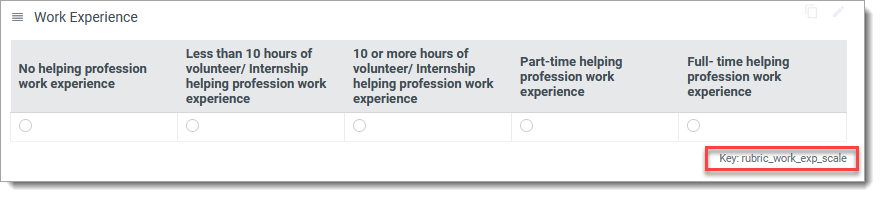
Fields that aren't sourced from these forms can be identified in the Field Dictionary. To use this dictionary:
- Click Field Dictionary in the Import/Export section of the Settings Menu.
- From the Field Dictionary, click one of the Quick Links or use the Search bar to locate your desired field.
- The Field Dictionary provides information regarding the key to use (e.g., forms.standardized_tests.toefl[].toefl_total_score), the data contained within the field, and the format the data appears in (e.g., String, Number, or Array). Review the information for the fields you want to use.
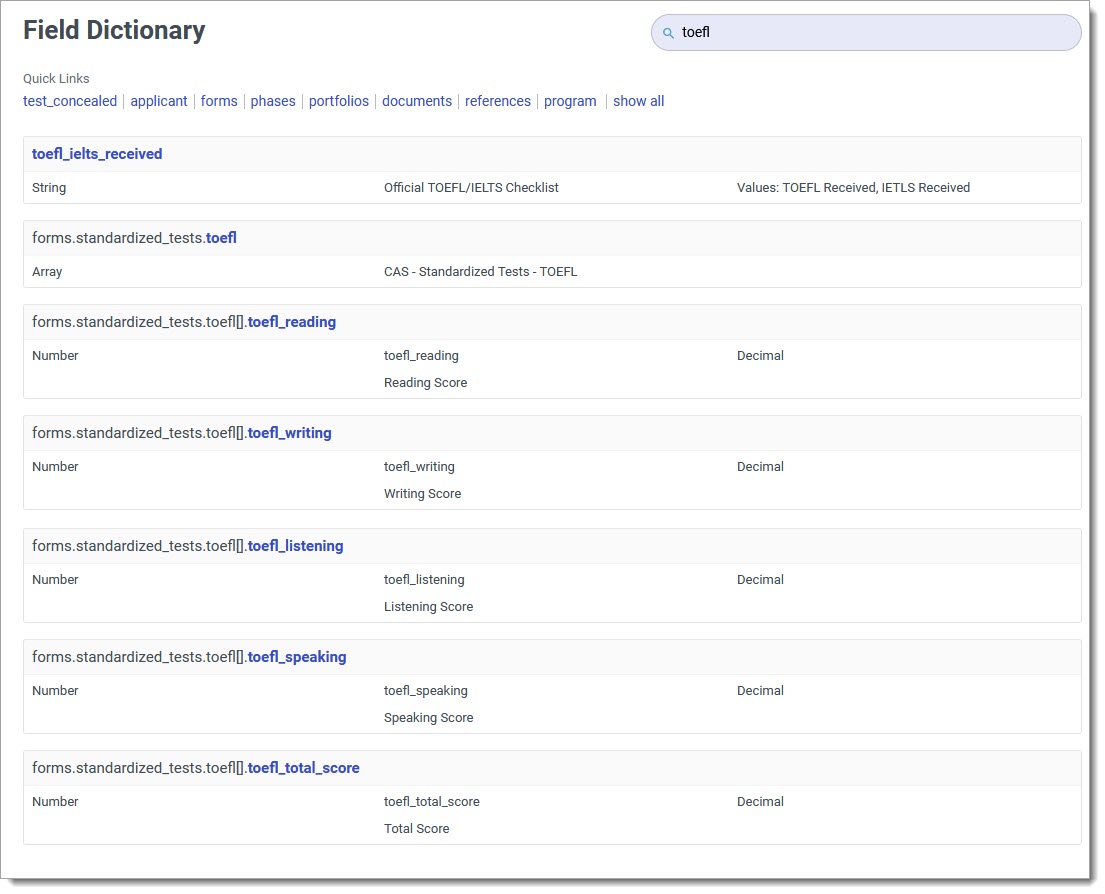
- Copy the keys you want to use and place them in your JavaScript expression.
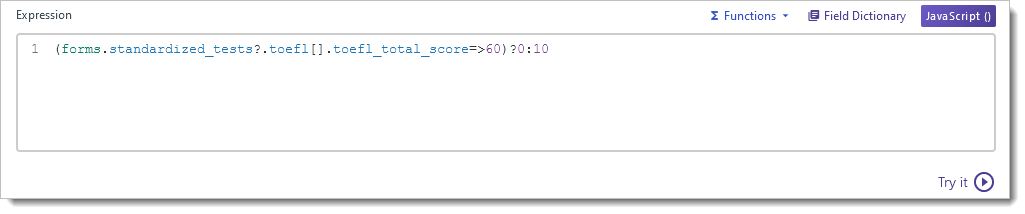
- Continue building on your expression or adding new Calculated Fields with different expressions.
- When ready, click Save Changes.
Note that if you reference a field key from a table or array that doesn't contain an applicable value (e.g., no evaluations or experiences exist), the expression may save but will never return a value. This may be difficult to diagnose without using the Try It feature.
Fields on a Review (Evaluation) Form
If the fields you need to work with are located on a review form:
- Navigate to Phases in the Application Review section of the Settings menu.
- Open the Phase that your form is associated with. Find the key at the top of the page. This is what you'll use to replace the phase name in the code.
- Next, find the keys for your evaluation forms. To do this, go to Evaluation Forms in the Application Review section of the Settings menu.
- Click the form you want to work with.
- At the top of the page, you'll find the key for the form, and each question on the form has its key listed underneath it. You'll use these keys to replace the variables in the code for the form name and question name, respectively.

In the example above, the key for the form is committee_review and the keys for the questions are committee_decision and personal_statement_1.
Fields on an Applicant Form
If the fields you'll need to work with are located on an applicant form:
- Navigate to Applicant Forms in the Application Setup section of the Settings Menu.
- Locate the form and its fields there, as described in step 5 above.